
⚠️ Important update
Say goodbye to manual IP anonymization. Google Analytics 4 now ensures IP addresses are not stored by default, enhancing your user privacy.
👉 Want to learn more? Check out our Google Analytics 4 overview.
If you’re using Google Analytics to track your user activity, and you have European users, to anonymize IP address is probably worth implementing.
Europe-based users have enhanced data privacy rights under the GDPR, and as IP addresses are considered personal data, you need to be mindful of how it’s processed.
In the sections below, we explain how to anonymize IP address in Google Analytics, and the reasons why you may need to.
In short
- What is IP anonymization in Google Analytics?
- How to anonymize IP address
- Find implementation snippets for:
Pour limiter les conséquences de l’utilisation de Google Analytics, il est souvent nécessaire :
- anonymize IP addresses ;
- prevent Google from combining or cross-referencing data through Google Analytics with data obtained from other Google products; then
- add the corresponding disclosures to your privacy policy .
🔎 IP anonymization in Google Analytics
La fonctionnalité d’anonymisation des adresses IP proposée par Google Analytics permet d’anonymiser les derniers chiffres de l’adresse IP des utilisateurs.
Comme l’indique Google :
When a customer of Analytics requests IP address anonymization, Analytics anonymizes the address as soon as technically feasible at the earliest possible stage of the collection network. The IP anonymization feature in Analytics sets the last octet of IPv4 user IP addresses and the last 80 bits of IPv6 addresses to zeros in memory shortly after being sent to the Analytics Collection Network. For example, an IP address of 12.214.31.144 would be changed to 12.214.31.0 (if the IP address is an IPv6 address, the last 80 of the 128 bits are set to zero). The full IP address is never written to disk in this case.
For more details on how anonymization works, read Google’s IP Anonymization in Analytics post in the Analytics help center.
Caution
Recent decisions by several European Data Protection Authorities have deemed the use of Google Analytics to be unlawful when handling the personal data of Europe-based users. To see which provisions are currently in place or follow the discussions about the use of Google Analytics in Europe, read this post.
Why anonymize IP addresses in Google Analytics?
Google propose cette fonctionnalité depuis mai 2010 pour permettre aux propriétaires de site Web de demander l’anonymisation des adresses IP de tous leurs utilisateurs dans Google Analytics.
This feature is designed to help site owners comply with their own privacy policies, recommendations from local data protection authorities and legal regulations like the GDPR , which may prevent the storage of full IP address information.
Google Consent Mode
To help advertisers manage cookies for analytics and advertising purposes , Google has introduced Consent Mode, a feature that allows you to avoid prior blocking for Google Analytics and Google Ads (including Google Ads Conversion Tracking and Remarketing).
👉 Learn how to implement it with our Privacy Controls and Cookie Solution.
Comment utiliser l’anonymisation des adresses IP
Pour configurer et utiliser l’anonymisation des adresses IP, vous devez procéder en deux étapes :
Code
Avant de nous plonger dans les modifications du code, voici quelques points à garder à l’esprit au sujet des bibliothèques de Google Analytics :
- ga.js is a legacy library. Here’s how to migrate from ga.js to analytics.js .
- the gtag.js library is the recommended tracking code for new implementations. However, there may be cases where you may still be using analytics.js (eg, your site already makes use of analytics.js). In any case, here’s how to migrate from analytics.js to gtag.js .
Vous trouverez donc ci-dessous les modifications à apporter à votre code pour :
Important
The codes below are just examples and need to be adapted to your working site.
📌 IP anonymization with gtag.js
Pour anonymiser les adresses IP pour tous les événements, mettez à jour la config de votre propriété en affectant au paramètre anonymize_ip la valeur true :
gtag('config', 'GA_TRACKING_ID', { 'anonymize_ip': true });Le code Google Analytics complet devrait donc ressembler à l’exemple suivant :
<!-- IP anonymization with gtag.js - Google Analytics -->
<script async src="https://www.googletagmanager.com/gtag/js?id=GA_TRACKING_ID"></script>
<script>
    window.dataLayer = window.dataLayer || [];
    function gtag() {
        dataLayer.push(arguments);
    }
    gtag('js', new Date());
    gtag('config', 'GA_TRACKING_ID', { 'anonymize_ip': true });
</script>
More info regarding the IP anonymization with gtag.js and the implementation snippets can be found on this Google Developers guide .
📌 IP anonymization with analytics.js
Pour anonymiser les adresses IP pour tous les appels provenant d’un même traqueur, utilisez la commande set pour affecter au champ anonymizeIp de votre traqueur la valeur true :
ga('set', 'anonymizeIp', true);Le code Google Analytics complet devrait donc ressembler à l’exemple suivant :
<!-- IP anonymization with analytics.js - Google Analytics -->
<script>
    (function(i, s, o, g, r, a, m) {
        i['GoogleAnalyticsObject'] = r;
        i[r] = i[r] || function() {
            (i[r].q = i[r].q || []).push(arguments)
        }, i[r].l = 1 * new Date();
        a = s.createElement(o),
            m = s.getElementsByTagName(o)[0];
        a.async = 1;
        a.src = g;
        m.parentNode.insertBefore(a, m)
    })(window, document, 'script', 'https://www.google-analytics.com/analytics.js', 'ga');

    ga('create', 'UA-XXXXX-Y', 'auto');
    ga('set', 'anonymizeIp', true);
    ga('send', 'pageview');
</script>
Pour plus d’informations sur l’anonymisation des adresses IP avec analytics.js et les modifications à apporter à votre code, consultez ce guide de Google destiné aux développeurs.
📌 IP anonymization for Google Analytics for iOS
SDK Firebase
Le kit de développement logiciel (SDK) Firebase est la méthode de suivi recommandée pour les applications iOS.
Toutes les adresses IP sont systématiquement anonymisées et stockées par Firebase Analytics. Il n’est pas nécessaire (et il n’existe aucun moyen) d’activer l’anonymisation.
Toutefois, d’après Steve Ganem, chef de produit chez Google :
Nothing guarantees that we anonymize these in Firebase’s API design or terms of service . Given that it’s just an implementation detail, you should be careful if you are trying to rely on this for any sort of legal compliance or to meet your company’s privacy policies . The docs and APIs are updated frequently and you should keep an eye on them, as well as the release notes , for changes.
Note: This is one noteworthy example of why it’s important that your privacy policy include the relevant and up-to-date clauses specific to the particular service and the current guarantees of that service.
SDK pour iOS
Si vous décidez d’utiliser le SDK des services Google Analytics pour iOS, voici comment activer la fonctionnalité AnonymizeIP pour un traqueur :
[tracker set:kGAIAnonymizeIp value:@"1"];La fonctionnalité AnonymizeIP peut être activée à tout moment.
Pour plus d’informations, rendez-vous sur developers.google.com.
📌 IP anonymization for Google Analytics for Android
Comme pour les applications iOS, le SDK Firebase est la méthode de suivi recommandée pour les applications Android. Toutes les adresses IP sont systématiquement anonymisées et stockées par Firebase Analytics. Les précautions mentionnées ci-dessus pour iOS s’appliquent également à Android.
Si vous décidez malgré tout d’utiliser le SDK des services Google Analytics pour Android, ajoutez le paramètre suivant à votre fichier de configuration pour activer la fonctionnalité d’anonymisation des adresses IP :
<string name="ga_anonymizeIp">true</string>Pour activer la fonctionnalité d’anonymisation des adresses IP dans votre programme pour un traqueur, utilisez la méthode setAnonymizeIp :
mTracker.setAnonymizeIp(true)La méthode setAnonymizeIp peut être appelée à tout moment.
Pour plus d’informations, rendez-vous sur developers.google.com.
Éviter le croisement des données
This constraint has been required by the Italian Authority in order to ensure that Google Analytics cookies are not subject to extra legal requirements. It’s also useful when approaching GDPR specifications related to the monitoring or profiling of users ( see recital 24 ). In other words, it’s the procedure to prevent Google from « cross-referencing » information from Analytics with other data in its possession.
💡 To learn more about which EU cookie consent rules apply on a per-country basis, check out our Cookie Consent Cheatsheet here .
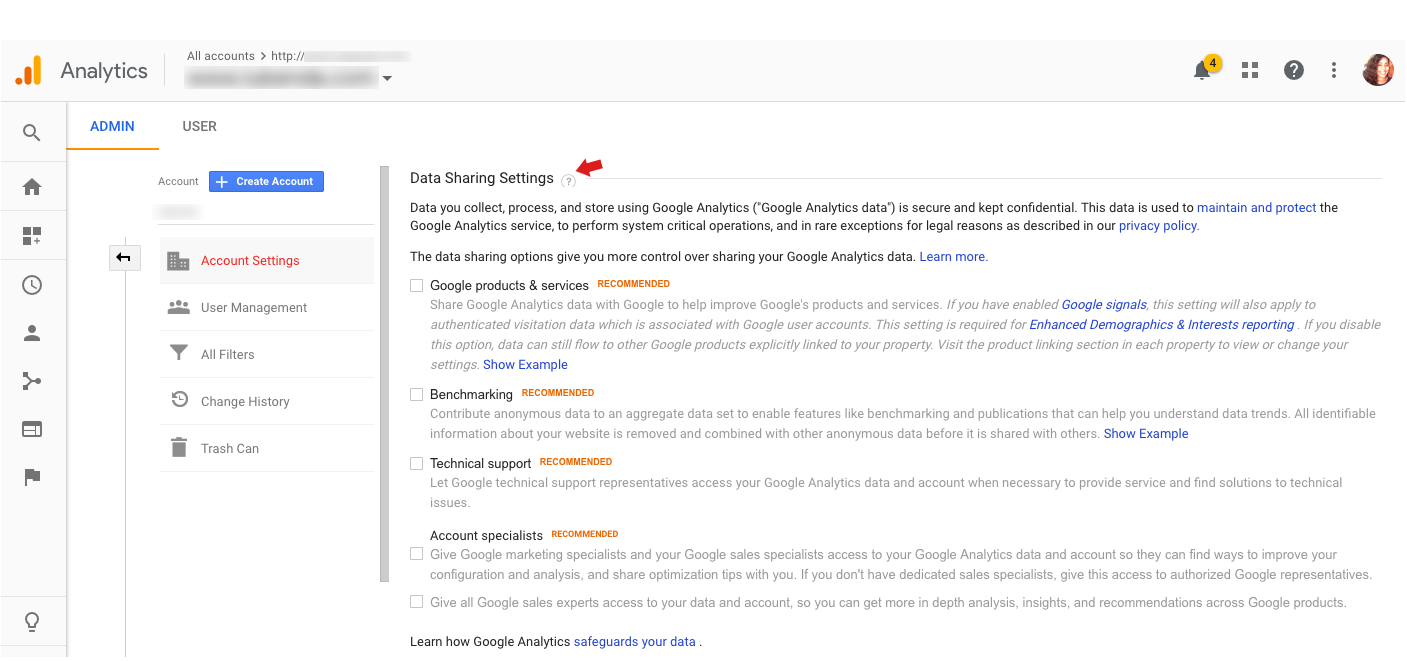
Pour vous conformer à cette exigence, vous devez modifier les paramètres de votre compte Google Analytics de façon à désactiver les autorisations relatives aux « produits et services de Google », à « l’analyse comparative », à « l’assistance technique » et aux « spécialistes de compte ».
Voici la marche à suivre :
- Log in to your Google Analytics account
- Click on Administration at the bottom of the left menu
- If you manage multiple Analytics accounts, choose the desired account from the pull-down menu at the top left
- Click on Account Settings
- Remove the check mark from the sharing settings as shown in the image below:

- Click on Save
Pour plus d’informations, consultez le guide Paramètres de partage des données de l’Aide Google Analytics officielle.
Ajouter les informations correspondantes à votre politique de confidentialité
Once you’ve changed the code on your site / app, it’s time to include this information in your Privacy Policy.
Our Privacy and Cookie Policy Generator makes it easy for you to meet your legal disclosure obligations by allowing you to correctly inform your users and define necessary details in a legally compliant way.
Le processus est simple et intuitif :
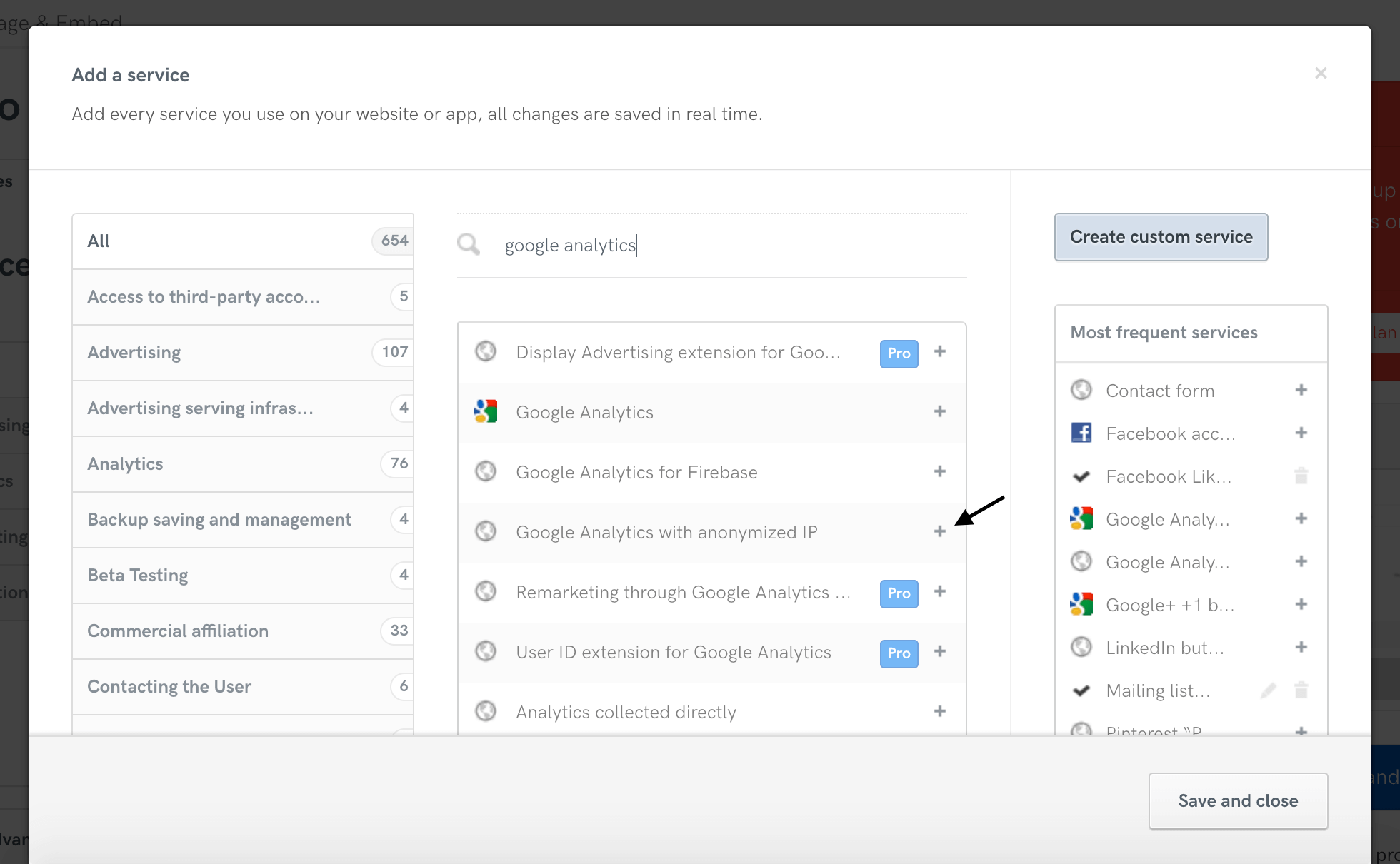
- Add any service you may be using. You can choose the services that apply to you from among our 1700+ pre-created clauses. In this case, it will be » Google Analytics with anonymized IP » (or » Google Analytics for Firebase » if you use the Firebase SDK for iOS / Android)

- Fill out your web / app owner and contact details
- Add the iubenda Privacy Policy to your site or app