
⚠️ Important update
Say goodbye to manual IP anonymization. Google Analytics 4 now ensures IP addresses are not stored by default, enhancing your user privacy.
👉 Want to learn more? Check out our Google Analytics 4 overview.
If you’re using Google Analytics to track your user activity, and you have European users, to anonymize IP address is probably worth implementing.
Europe-based users have enhanced data privacy rights under the GDPR, and as IP addresses are considered personal data, you need to be mindful of how it’s processed.
In the sections below, we explain how to anonymize IP address in Google Analytics, and the reasons why you may need to.
In short
- What is IP anonymization in Google Analytics?
- How to anonymize IP address
- Find implementation snippets for:
Para limitar as consequências relacionadas ao uso do Google Analytics, muitas vezes é necessário:
- anonymize IP addresses ;
- prevent Google from combining or cross-referencing data through Google Analytics with data obtained from other Google products; then
- add the corresponding disclosures to your privacy policy .
🔎 IP anonymization in Google Analytics
O recurso de anonimização de IP no Google Analytics anonimiza os últimos dígitos do IP do usuário.
Nas palavras do Google :
When a customer of Analytics requests IP address anonymization, Analytics anonymizes the address as soon as technically feasible at the earliest possible stage of the collection network. The IP anonymization feature in Analytics sets the last octet of IPv4 user IP addresses and the last 80 bits of IPv6 addresses to zeros in memory shortly after being sent to the Analytics Collection Network. For example, an IP address of 12.214.31.144 would be changed to 12.214.31.0 (if the IP address is an IPv6 address, the last 80 of the 128 bits are set to zero). The full IP address is never written to disk in this case.
For more details on how anonymization works, read Google’s IP Anonymization in Analytics post in the Analytics help center.
Caution
Recent decisions by several European Data Protection Authorities have deemed the use of Google Analytics to be unlawful when handling the personal data of Europe-based users. To see which provisions are currently in place or follow the discussions about the use of Google Analytics in Europe, read this post.
Why anonymize IP addresses in Google Analytics?
O Google providenciou essa função desde maio de 2010 para permitir que os proprietários de sites solicitem que todos os endereços IP de seus usuários sejam anonimizados dentro do Google Analytics .
This feature is designed to help site owners comply with their own privacy policies, recommendations from local data protection authorities and legal regulations like the GDPR , which may prevent the storage of full IP address information.
Google Consent Mode
To help advertisers manage cookies for analytics and advertising purposes , Google has introduced Consent Mode, a feature that allows you to avoid prior blocking for Google Analytics and Google Ads (including Google Ads Conversion Tracking and Remarketing).
👉 Learn how to implement it with our Privacy Controls and Cookie Solution.
Como usar a anonimização do IP
Para configurar e usar a anonimização do IP, você tem que fazer o seguinte:
Código
Antes de começar as implementações de código, aqui estão alguns pontos a serem observados sobre as bibliotecas do Google Analytics:
- ga.js is a legacy library. Here’s how to migrate from ga.js to analytics.js .
- the gtag.js library is the recommended tracking code for new implementations. However, there may be cases where you may still be using analytics.js (eg, your site already makes use of analytics.js). In any case, here’s how to migrate from analytics.js to gtag.js .
Dito isso, abaixo você encontrará trechos de implementação para:
Important
The codes below are just examples and need to be adapted to your working site.
📌 IP anonymization with gtag.js
Para anonimizar endereços IP para todos os eventos, atualize o configpara sua propriedade, definindo o valor do anonymize_ipparâmetro para true:
gtag('config', 'GA_TRACKING_ID', { 'anonymize_ip': true });O trecho completo do Google Analytics, portanto, seria algo parecido com isso:
<!-- IP anonymization with gtag.js - Google Analytics -->
<script async src="https://www.googletagmanager.com/gtag/js?id=GA_TRACKING_ID"></script>
<script>
    window.dataLayer = window.dataLayer || [];
    function gtag() {
        dataLayer.push(arguments);
    }
    gtag('js', new Date());
    gtag('config', 'GA_TRACKING_ID', { 'anonymize_ip': true });
</script>
More info regarding the IP anonymization with gtag.js and the implementation snippets can be found on this Google Developers guide .
📌 IP anonymization with analytics.js
Para anonimizar o endereço IP para todos os hits enviados a partir de um único rastreador, use o setcomando para configurar o anonymizeIpcampo para trueno rastreador:
ga('set', 'anonymizeIp', true);O trecho completo do Google Analytics, portanto, seria algo parecido com isso:
<!-- IP anonymization with analytics.js - Google Analytics -->
<script>
    (function(i, s, o, g, r, a, m) {
        i['GoogleAnalyticsObject'] = r;
        i[r] = i[r] || function() {
            (i[r].q = i[r].q || []).push(arguments)
        }, i[r].l = 1 * new Date();
        a = s.createElement(o),
            m = s.getElementsByTagName(o)[0];
        a.async = 1;
        a.src = g;
        m.parentNode.insertBefore(a, m)
    })(window, document, 'script', 'https://www.google-analytics.com/analytics.js', 'ga');

    ga('create', 'UA-XXXXX-Y', 'auto');
    ga('set', 'anonymizeIp', true);
    ga('send', 'pageview');
</script>
Mais informações sobre a anonimização do IP com analytics.js e os trechos de implementação podem ser encontrados nesse guia para Google Developers .
📌 IP anonymization for Google Analytics for iOS
Firebase SDK
O Firebase SDK é o método recomendado para rastrear aplicativos iOS.
Todos os endereços IP são incondicionalmente anonimizados e armazenados pelo Firebase Analytics. Não há necessidade (ou método) de fazê-lo explicitamente .
Porém, de acordo com o gerente de produto do Google, Steve Ganem :
Nothing guarantees that we anonymize these in Firebase’s API design or terms of service . Given that it’s just an implementation detail, you should be careful if you are trying to rely on this for any sort of legal compliance or to meet your company’s privacy policies . The docs and APIs are updated frequently and you should keep an eye on them, as well as the release notes , for changes.
Note: This is one noteworthy example of why it’s important that your privacy policy include the relevant and up-to-date clauses specific to the particular service and the current guarantees of that service.
iOS SDK
Se você escolher usar os Google Analytics Services SDK para iOS , veja como ativar a funcionalidade AnonimizeIP para um rastreador:
[tracker set:kGAIAnonymizeIp value:@"1"];A funcionalidade AnonimizeIP pode ser configurada a qualquer momento.
Mais informações em developers.google.com .
📌 IP anonymization for Google Analytics for Android
Semelhante aos apps iOS, o Firebase SDK é o método recomendado para rastrear apps Android. Todos os endereços IP são incondicionalmente anonimizados e armazenados pelo Firebase Analytics, com as precauções necessárias mencionadas acima .
Não obstante o acima, se você optar por usar Google Analytics Services SDK para Android , use o seguinte parâmetro em seu arquivo de configuração para habilitar a funcionalidade IP anonimize:
<string name="ga_anonymizeIp">true</string>Para habilitar a funcionalidade IP anonimize para um rastreador, use o método setAnonymizeIp:
mTracker.setAnonymizeIp(true)O setAnonymizeIpmétodo pode ser ativado a qualquer momento.
Mais informações em developers.google.com .
Evitando o cruzamento de dados
This constraint has been required by the Italian Authority in order to ensure that Google Analytics cookies are not subject to extra legal requirements. It’s also useful when approaching GDPR specifications related to the monitoring or profiling of users ( see recital 24 ). In other words, it’s the procedure to prevent Google from “cross-referencing” information from Analytics with other data in its possession.
💡 To learn more about which EU cookie consent rules apply on a per-country basis, check out our Cookie Consent Cheatsheet here .
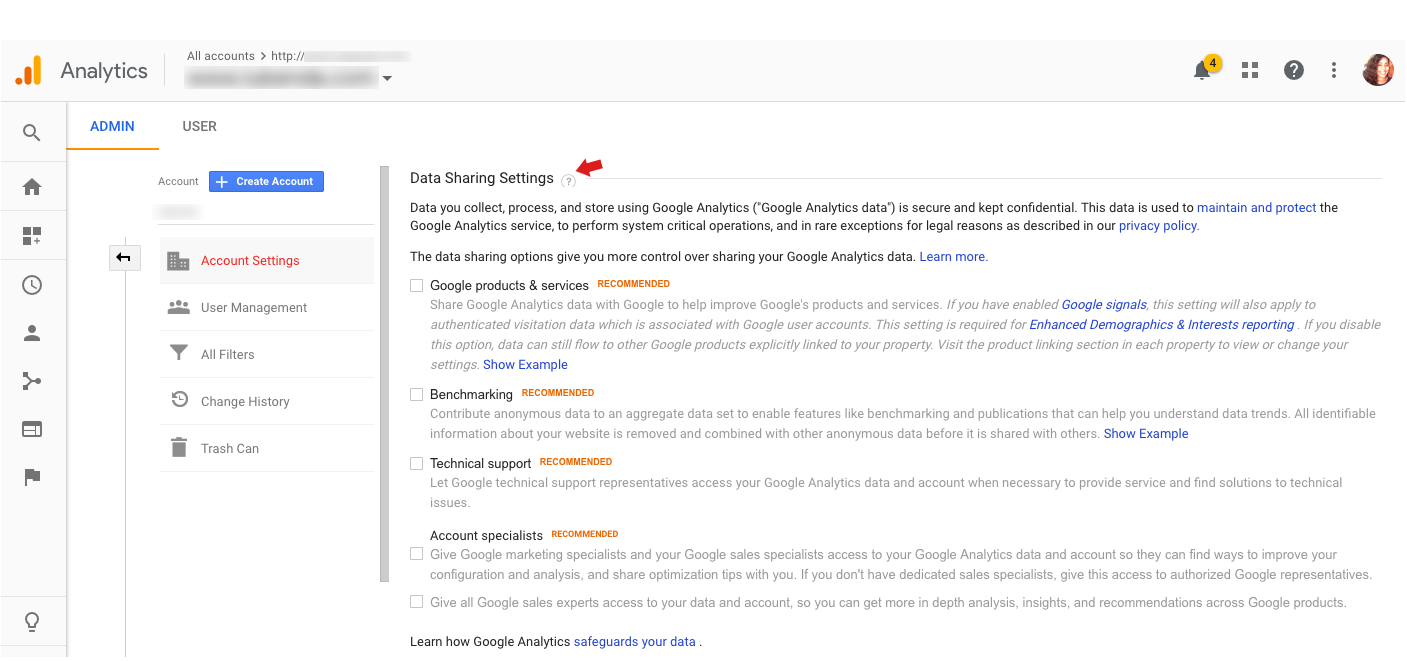
Para cumprir essa exigência é necessário alterar as configurações da sua conta do Google Analytics para desativar permissões relacionadas a ” Google products and services “, ” Benchmarking “, ” Technical assistance ” e ” Account expert “.
Veja como:
- Log in to your Google Analytics account
- Click on Administration at the bottom of the left menu
- If you manage multiple Analytics accounts, choose the desired account from the pull-down menu at the top left
- Click on Account Settings
- Remove the check mark from the sharing settings as shown in the image below:

- Click on Save
Para mais informações, leia Configurações de compartilhamento de dados no Google Analytics Help Center oficial.
Adicionando as divulgações correspondentes em sua política de privacidade
Once you’ve changed the code on your site / app, it’s time to include this information in your Privacy Policy.
Our Privacy and Cookie Policy Generator makes it easy for you to meet your legal disclosure obligations by allowing you to correctly inform your users and define necessary details in a legally compliant way.
O processo é simples e intuitivo:
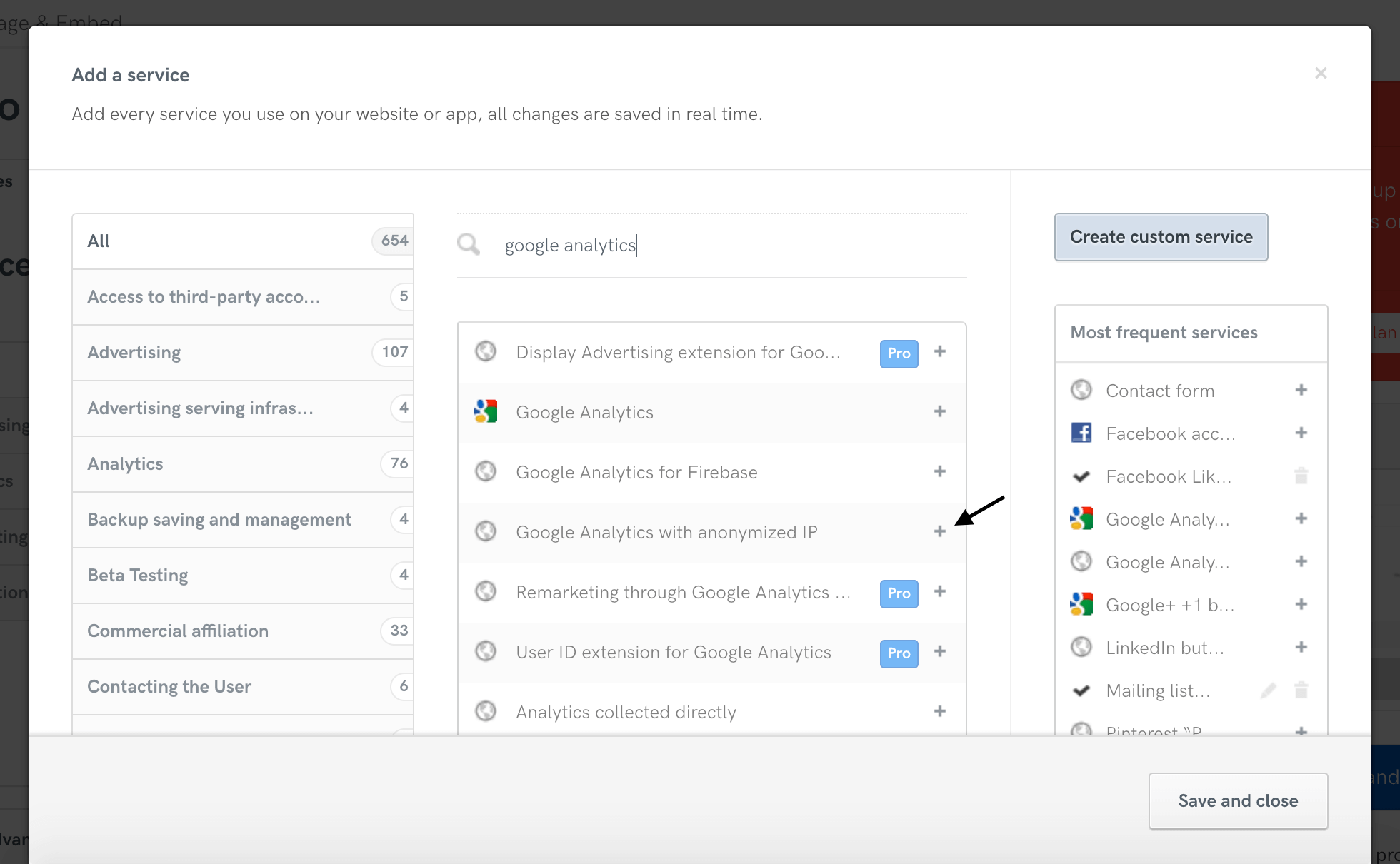
- Add any service you may be using. You can choose the services that apply to you from among our 1700+ pre-created clauses. In this case, it will be ” Google Analytics with anonymized IP ” (or ” Google Analytics for Firebase ” if you use the Firebase SDK for iOS / Android)

- Fill out your web / app owner and contact details
- Add the iubenda Privacy Policy to your site or app