

Website owner? Laws like the GDPR Regulation require you to be transparent about the data you process from your users and give them the option to consent or refuse to grant consent to trackers like cookies (and similar technologies) running on your site.
Many website owners don’t know what cookies their site uses or what they are used for.
And doing so is not always an easy task, so we have created a short guide to help identify the cookies your site installs ⬇️
In short:
What is a tracking cookie
A tracking cookie is a small piece of data that websites or apps send and store on users’ computers via their web browser. You can classify cookies as first-party (produced by your site) or third-party (produced by third-party services like widgets, iframes, scripts, etc.)
To comply with laws like the GDPR and ePrivacy (Cookie Law), you must block non-exempt cookies before user consent, regardless of whether they are first-party or third-party cookies.
How to identify cookies using Free Scanning software
iubenda’s free site scanner will scan your site and tell you which services are running on your site, and which legal disclosures you’ll need to add to your privacy documents as a result.
The results are generated in seconds, and it’s the easiest of all the methods of identifying what’s running on your site. Check out the free site scanner here.
Identify Cookies Using a Browser extension
Pour identifier les cookies installés via votre site Web, vous devrez probablement combiner plusieurs outils, les principaux et les plus couramment utilisés étant Wappalyser et BuiltWith. Tous deux existent sous forme d’extension (« add-on ») des navigateurs les plus courants et permettent une analyse fine de toutes les ressources et technologies à œuvre sur un site Web. Outre révéler les cookies installés via un site Web, ils listent toutes les technologies utilisées par ce site, comme l’infrastructure de serveur, le CMS utilisé ou d’autres informations spécifiques.
Il existe un autre outil bien connu : Ghostery, également disponible sous forme d’extension pour les navigateurs les plus utilisés. Toutefois, il n’est pas recommandé de l’utiliser pour identifier les cookies car il ne scanne pas le site Web en temps réel. En outre, il est susceptible de signaler des scripts qui ne sont pas directement installés à partir du site mais à partir de certains de ses widgets, ce qui fausserait les résultats de votre analyse.
Identify Cookies Using the Development Console of browsers
The development console, when used in conjunction with the other methods indicated, can be a very reliable and immediate tool for identifying cookies installed via a website. Below is an explanation of how to display cookies using the development console of two of the most popular and most used internet browsers, Google Chrome and Mozilla Firefox.
Remarque : avant d’analyser les cookies d’un site Web via la console de développement, n’oubliez pas d’effacer le cache et les cookies pour éviter de fausser les résultats.
Finding Cookies with Google Chrome
If you use Google Chrome, this is how to proceed:
- Clear cache and cookies (menu button in the upper right corner > More tools > Clear browsing data)
- To open the console, click on the toolbar: View > Developer > JavaScript Console
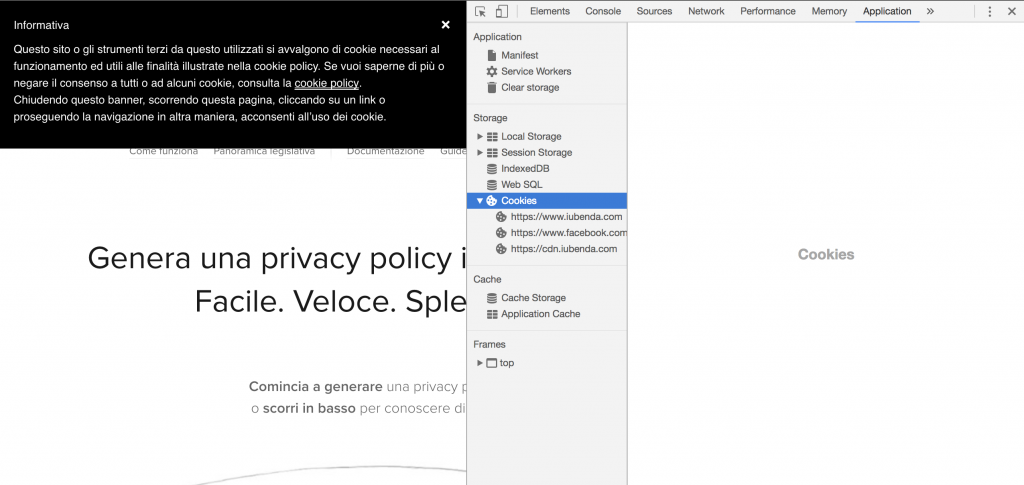
- Once the console is open, you can view the cookies installed by the site by clicking on the Application tab
Finding Cookies with Mozilla Firefox
If you prefer to use Mozilla’s Firefox, here are the steps to follow:
- Clear cache and cookies (menu button in the upper right corner > Options > Clear data under « Privacy and security/Cookies and Site Data »)
- To open the console, click on the toolbar: Tools > Web Development > Enable Tools
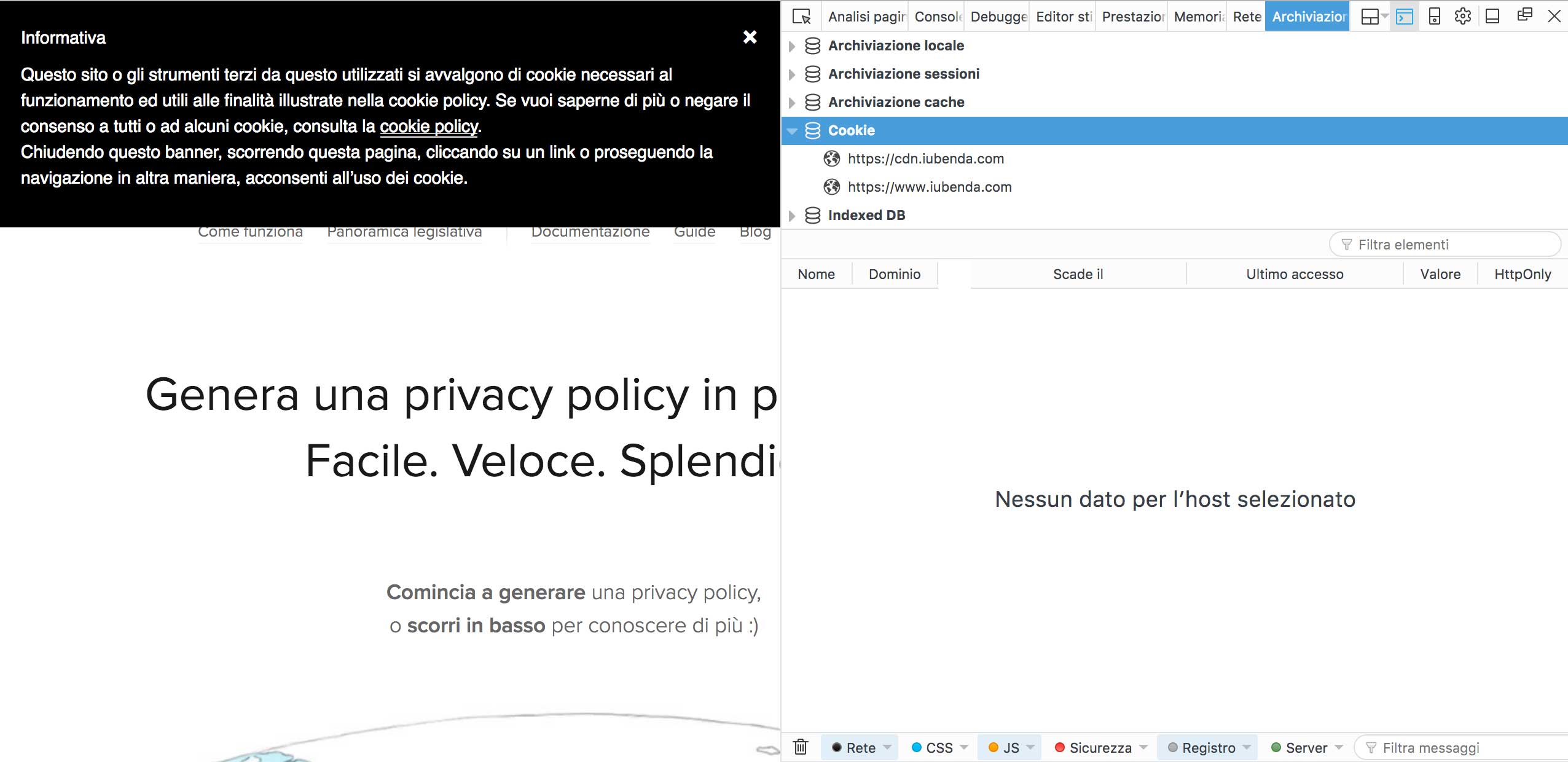
- Once the console is opened, you will need to click on the Storage tab, then on the Cookie drop-down menu to view the list of cookies installed by the site up to that moment
Identify Cookies Using Phantom JS (a method for developers)
PhantomJS est un « navigateur sans tête », c’est-à-dire un outil qui permet de réaliser des actions qui nécessitent habituellement l’utilisation d’un navigateur, sans toutefois afficher la fenêtre de navigation elle-même. Cet outil multi-plateforme en open source, basé sur WebKit, est disponible sous Mac, Linux et Windows.
Utiliser PhantomJS pour localiser les cookies
Vous devez utiliser PhantomJS dans le terminal. L’une de ses fonctionnalités est l’identification des cookies installés par un site spécifique. Pour commencer, téléchargez le package disponible via ce lien et installez la ressource.
La commande « phantomjs » sera accessible une fois que vous aurez suivi la procédure d’installation. Ensuite, il vous faudra un shell (sur les systèmes UNIX) ou une invite de commande (pour Windows) où vous saisirez cette commande :
phantomjs --ignore-ssl-errors=yes --disk-cache=yes fetch_data.js http://yoursite.com
Voyons tout cela plus en détail :
phantomjs: this is the main command;--ignore-ssl-errors=yes: this option avoids errors related to the SSL certificate being considered;--disk-cache= true: the process will save the resources on the disk;fetch-data.js: this is the file that processes the request to the site and displays it on the shell downloadable at this link. Important: this file must be in the same folder from where you launched the command, otherwise you will have to indicate~/path/of/fetch/data;http://yoursite.com: the website you want to analyze.
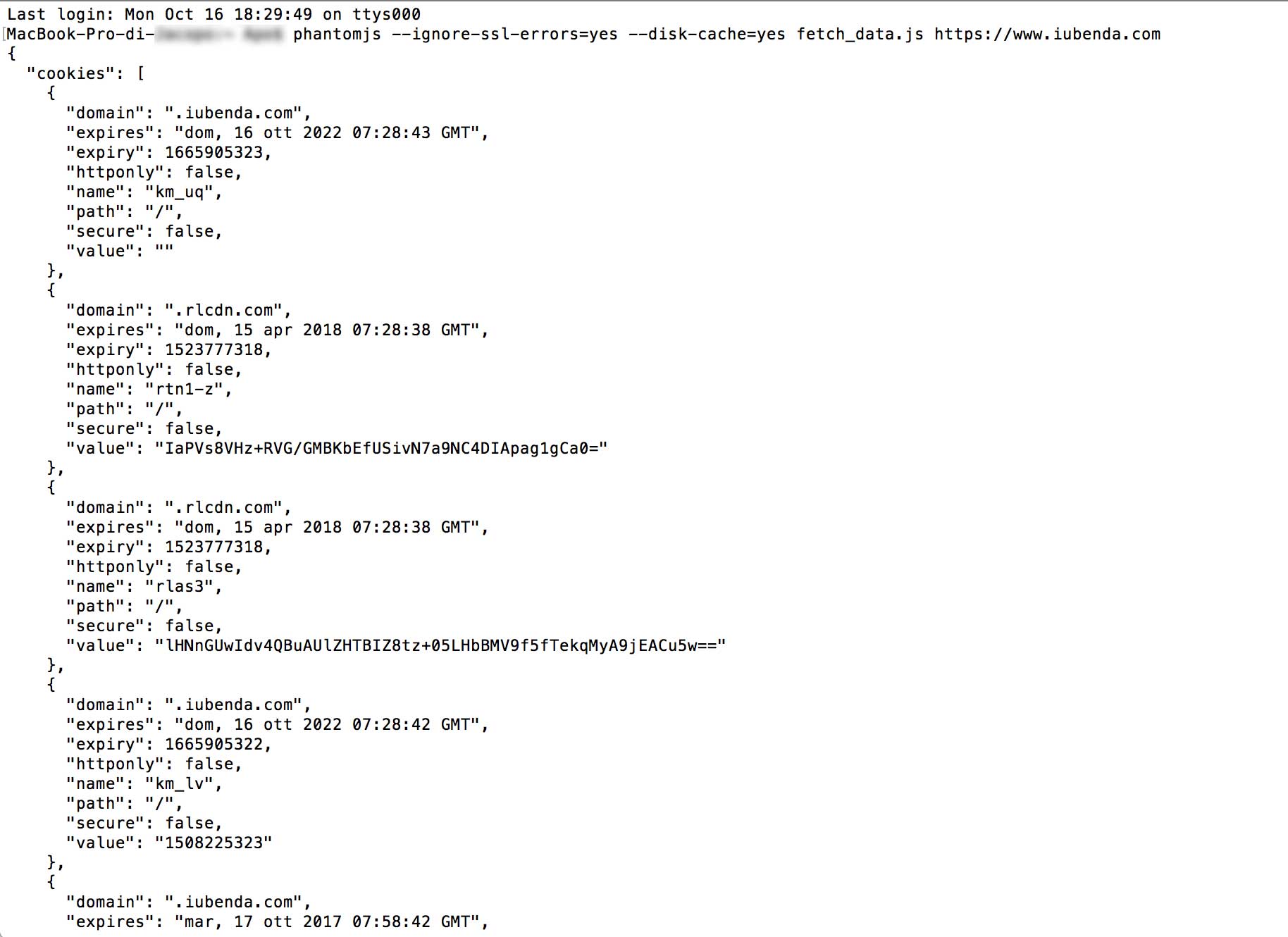
Une fois la commande exécutée, le terminal affichera une liste des ressources et des cookies utilisés par le site interrogé.
If your site is running cookies, here’s what you need to do:
- ✅ Generate your cookie banner
- ✅ Copy and paste to add it to your website