

Website owner? Laws like the GDPR Regulation require you to be transparent about the data you process from your users and give them the option to consent or refuse to grant consent to trackers like cookies (and similar technologies) running on your site.
Many website owners don’t know what cookies their site uses or what they are used for.
And doing so is not always an easy task, so we have created a short guide to help identify the cookies your site installs ⬇️
In short:
What is a tracking cookie
A tracking cookie is a small piece of data that websites or apps send and store on users’ computers via their web browser. You can classify cookies as first-party (produced by your site) or third-party (produced by third-party services like widgets, iframes, scripts, etc.)
To comply with laws like the GDPR and ePrivacy (Cookie Law), you must block non-exempt cookies before user consent, regardless of whether they are first-party or third-party cookies.
How to identify cookies using Free Scanning software
iubenda’s free site scanner will scan your site and tell you which services are running on your site, and which legal disclosures you’ll need to add to your privacy documents as a result.
The results are generated in seconds, and it’s the easiest of all the methods of identifying what’s running on your site. Check out the free site scanner here.
Identify Cookies Using a Browser extension
A identificação dos cookies instalados através do seu site pode acabar sendo resultado do uso combinado de diferentes ferramentas, as principais e mais comumente utilizadas são Wappalyzer e BuiltWith, ambas estão disponíveis como add-ons para todos os navegadores mais usados e permitem uma análise completa de todos os recursos e tecnologias implementadas em um site. Eles não apenas divulgam os cookies instalados por meio de um site, mas também listam todas as tecnologias utilizadas naquele site, como a infraestrutura do servidor, o CMS utilizado e outras informações específicas.
Outra ferramenta conhecida é o Ghostery: também está disponível como extensão para os navegadores mais populares, mas não é recomendada para identificação de cookies, pois seu funcionamento não se baseia na varredura do site em tempo real. Também pode indicar alguns scripts que não são instalados diretamente do site, mas de alguns de seus widgets, distorcendo, assim, os resultados de sua análise.
Identify Cookies Using the Development Console of browsers
The development console, when used in conjunction with the other methods indicated, can be a very reliable and immediate tool for identifying cookies installed via a website. Below is an explanation of how to display cookies using the development console of two of the most popular and most used internet browsers, Google Chrome and Mozilla Firefox.
Observação: ao analisar os cookies de um site por meio do console de desenvolvimento, lembre-se primeiro de limpar o cache e os cookies, caso contrário, os resultados podem não ser precisos.
Finding Cookies with Google Chrome
If you use Google Chrome, this is how to proceed:
- Clear cache and cookies (menu button in the upper right corner > More tools > Clear browsing data)
- To open the console, click on the toolbar: View > Developer > JavaScript Console
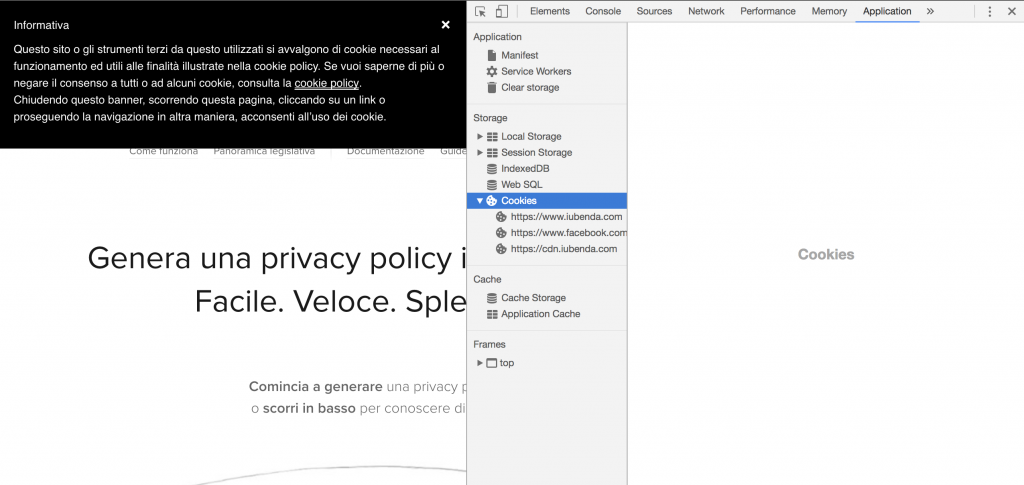
- Once the console is open, you can view the cookies installed by the site by clicking on the Application tab
Finding Cookies with Mozilla Firefox
If you prefer to use Mozilla’s Firefox, here are the steps to follow:
- Clear cache and cookies (menu button in the upper right corner > Options > Clear data under “Privacy and security/Cookies and Site Data”)
- To open the console, click on the toolbar: Tools > Web Development > Enable Tools
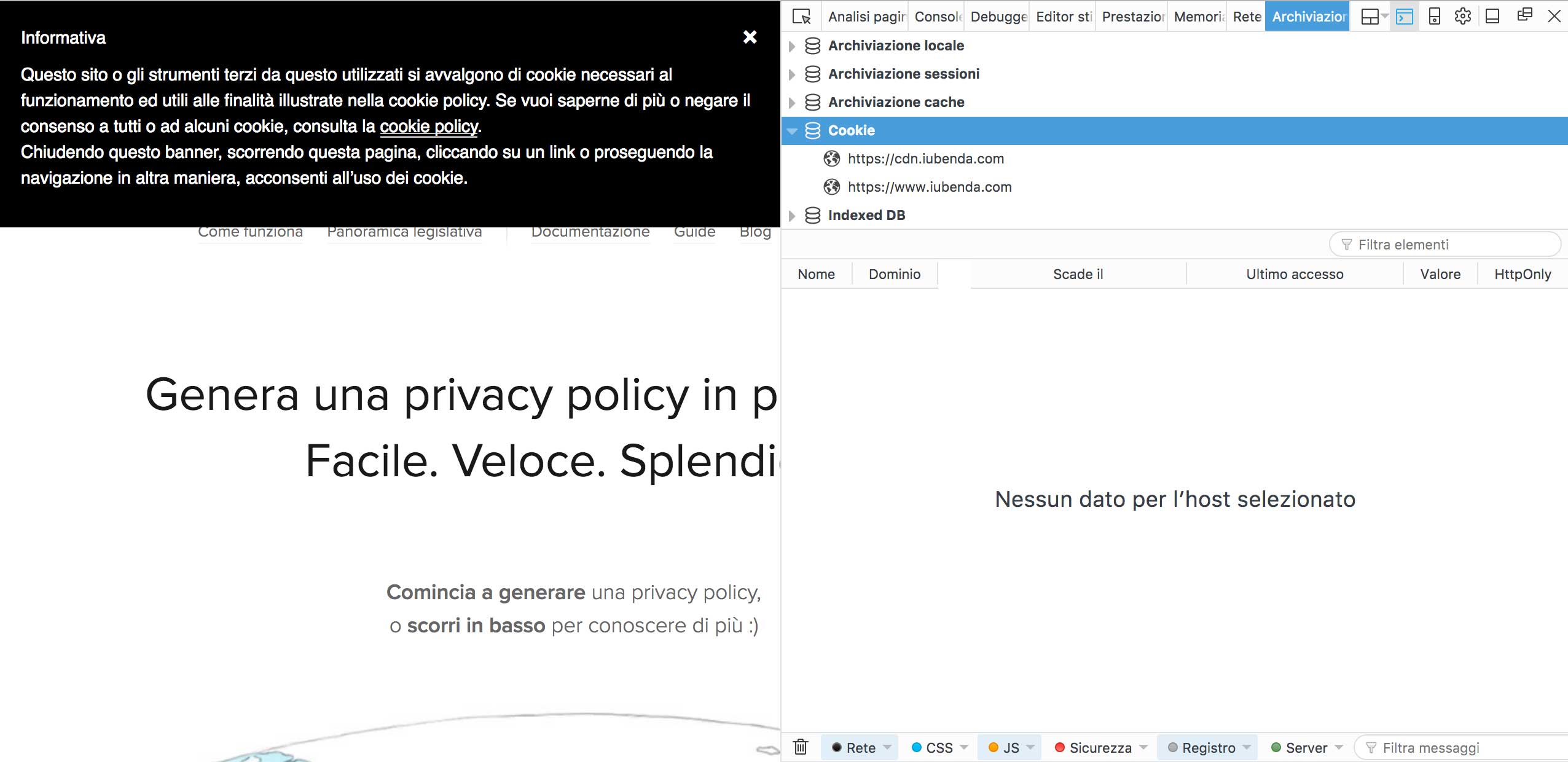
- Once the console is opened, you will need to click on the Storage tab, then on the Cookie drop-down menu to view the list of cookies installed by the site up to that moment
Identify Cookies Using Phantom JS (a method for developers)
PhantomJS é um “headless browser”, ou seja, uma ferramenta que permite realizar ações que normalmente requerem o uso de um navegador, sem exibir o próprio navegador na tela. Esta é uma ferramenta multi-plataforma OpenSource baseada no WebKit e disponível para Mac, Windows e Linux.
Uso do PhantomJS para localizar cookies
O PhantomJS deve ser usado dentro do terminal. Entre as suas funções, também está a de identificar os cookies instalados por um determinado site. Antes de mais nada, você deve baixar o pacote disponível neste link e instalar o recurso.
Após seguir o procedimento de instalação, o comando “phantomjs” estará disponível. Para continuar, precisamos de um shell (em sistemas UNIX) ou prompt de comando (para Windows) onde inseriremos a seguinte linha:
phantomjs --ignore-ssl-errors=yes --disk-cache=yes fetch_data.js http://yoursite.com
Vamos nos aprofundar neste assunto, elemento por elemento:
phantomjs: this is the main command;--ignore-ssl-errors=yes: this option avoids errors related to the SSL certificate being considered;--disk-cache= true: the process will save the resources on the disk;fetch-data.js: this is the file that processes the request to the site and displays it on the shell downloadable at this link. Important: this file must be in the same folder from where you launched the command, otherwise you will have to indicate~/path/of/fetch/data;http://yoursite.com: the website you want to analyze.
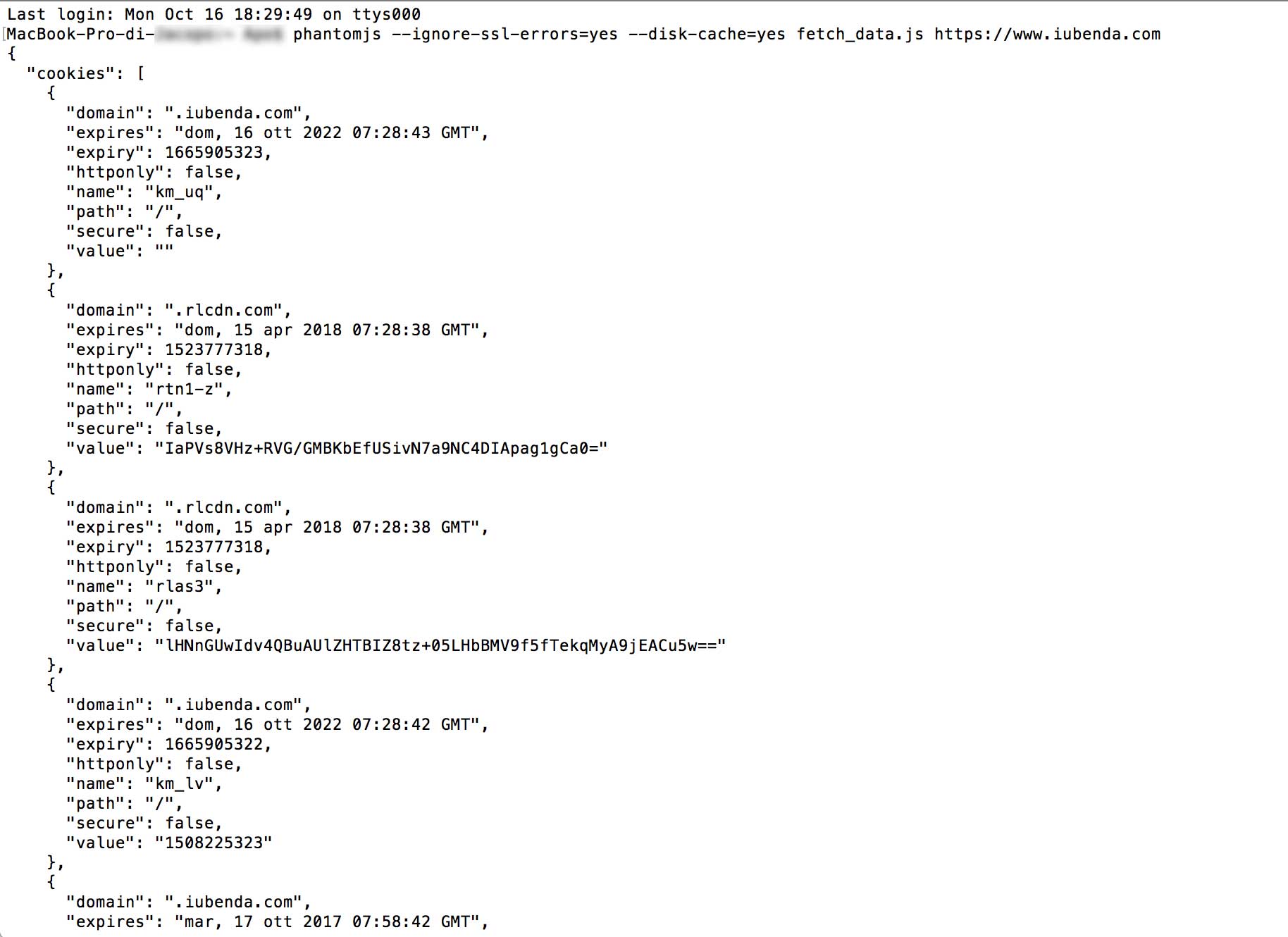
Após a execução deste comando, o terminal retornará uma lista dos recursos e cookies usados pelo site relacionado.
If your site is running cookies, here’s what you need to do:
- ✅ Generate your cookie banner
- ✅ Copy and paste to add it to your website