

Website owner? Laws like the GDPR Regulation require you to be transparent about the data you process from your users and give them the option to consent or refuse to grant consent to trackers like cookies (and similar technologies) running on your site.
Many website owners don’t know what cookies their site uses or what they are used for.
And doing so is not always an easy task, so we have created a short guide to help identify the cookies your site installs ⬇️
In short:
What is a tracking cookie
A tracking cookie is a small piece of data that websites or apps send and store on users’ computers via their web browser. You can classify cookies as first-party (produced by your site) or third-party (produced by third-party services like widgets, iframes, scripts, etc.)
To comply with laws like the GDPR and ePrivacy (Cookie Law), you must block non-exempt cookies before user consent, regardless of whether they are first-party or third-party cookies.
How to identify cookies using Free Scanning software
iubenda’s free site scanner will scan your site and tell you which services are running on your site, and which legal disclosures you’ll need to add to your privacy documents as a result.
The results are generated in seconds, and it’s the easiest of all the methods of identifying what’s running on your site. Check out the free site scanner here.
Identify Cookies Using a Browser extension
Het identificeren van via je website geïnstalleerde cookies kan vaak het best met een gecombineerd gebruik van verschillende hulpmiddelen. De belangrijkste en meest gebruikte zijn Wappalyzer en BuiltWith. Beide zijn beschikbaar als add-ons voor alle meest gebruikte browsers en maken een grondige analyse mogelijk van alle hulpmiddelen en technologieën die in een website zijn geïmplementeerd. Ze identificeren niet alleen de via een website geïnstalleerde cookies, maar geven ook een overzicht van alle op die site gebruikte technologieën, zoals de serverinfrastructuur, het gebruikte CMS en andere specifieke informatie.
Een ander bekend hulpmiddel is Ghostery. Deze is ook beschikbaar als extensie voor de meest populaire webbrowsers, maar wordt niet aanbevolen voor het identificeren van cookies omdat de werking ervan niet is gebaseerd op een realtime scan van de website. Het kan ook een aantal scripts aanwijzen die niet rechtstreeks van de website zijn geïnstalleerd, maar vanuit widgets ervan, waardoor de resultaten van je analyse worden vertekend.
Identify Cookies Using the Development Console of browsers
The development console, when used in conjunction with the other methods indicated, can be a very reliable and immediate tool for identifying cookies installed via a website. Below is an explanation of how to display cookies using the development console of two of the most popular and most used internet browsers, Google Chrome and Mozilla Firefox.
Opmerking: wanneer je de cookies van een website analyseert via de ontwikkelingsconsole, vergeet dan niet eerst de cache en de cookies te wissen. Anders zijn de resultaten mogelijk niet nauwkeurig.
Finding Cookies with Google Chrome
If you use Google Chrome, this is how to proceed:
- Clear cache and cookies (menu button in the upper right corner > More tools > Clear browsing data)
- To open the console, click on the toolbar: View > Developer > JavaScript Console
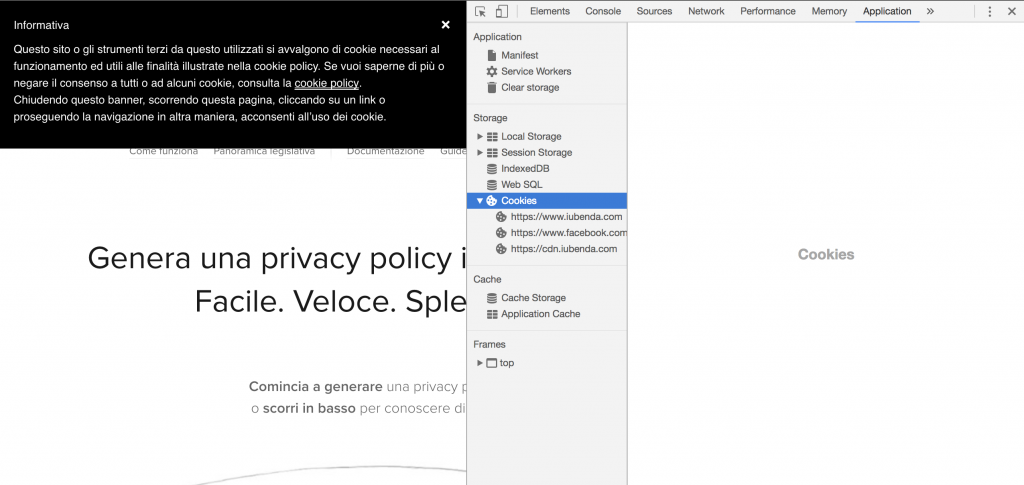
- Once the console is open, you can view the cookies installed by the site by clicking on the Application tab
Finding Cookies with Mozilla Firefox
If you prefer to use Mozilla’s Firefox, here are the steps to follow:
- Clear cache and cookies (menu button in the upper right corner > Options > Clear data under “Privacy and security/Cookies and Site Data”)
- To open the console, click on the toolbar: Tools > Web Development > Enable Tools
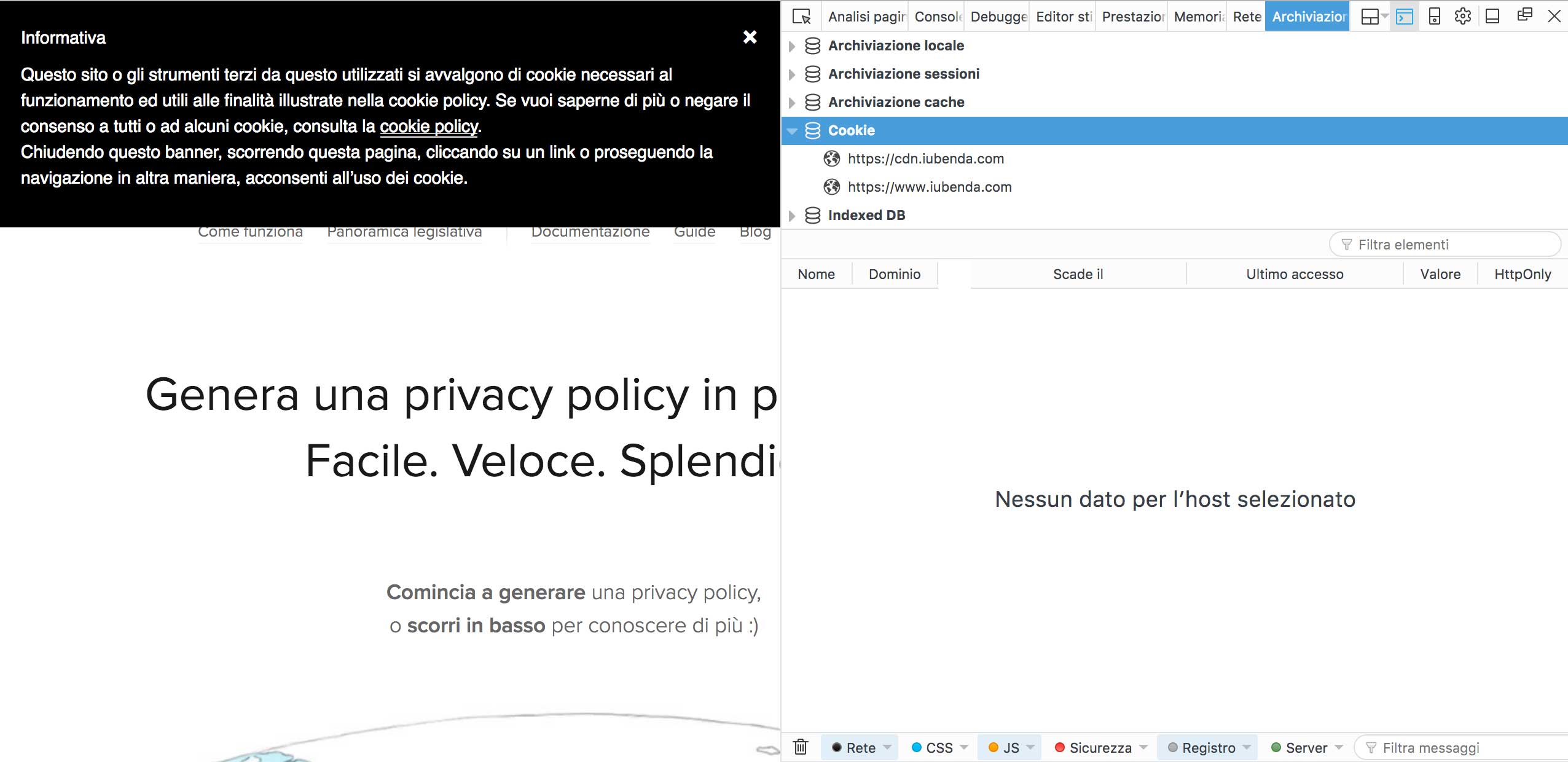
- Once the console is opened, you will need to click on the Storage tab, then on the Cookie drop-down menu to view the list of cookies installed by the site up to that moment
Identify Cookies Using Phantom JS (a method for developers)
PhantomJS is een “headless browser”, een hulpmiddel waarmee je acties kunt uitvoeren die normaal gesproken het gebruik van een browser vereisen, zonder dat de browser zelf op het scherm wordt weergegeven. Dit is een WebKit open source cross-platformtool die beschikaar is voor Mac, Windows and Linux.
PhantomJS gebruiken om cookies te lokaliseren
PhantomJS moet binnen de terminal worden gebruikt. Een van de functies ervan is het identificeren van de cookies die door een specifieke website zijn geïnstalleerd. Download eerst het pakket beschikbaar via deze link en installeer het hulpprogramma.
Na de installatie is de opdracht “phantomjs” beschikbaar. Om verder te gaan heb je een shell nodig (op UNIX-systemen) of gebruik je de opdrachtregel (voor Windows) om de volgende regel in te voeren:
phantomjs --ignore-ssl-errors=yes --disk-cache=yes fetch_data.js http://yoursite.com
Laten we hier voor elk element eens induiken:
phantomjs: this is the main command;--ignore-ssl-errors=yes: this option avoids errors related to the SSL certificate being considered;--disk-cache= true: the process will save the resources on the disk;fetch-data.js: this is the file that processes the request to the site and displays it on the shell downloadable at this link. Important: this file must be in the same folder from where you launched the command, otherwise you will have to indicate~/path/of/fetch/data;http://yoursite.com: the website you want to analyze.
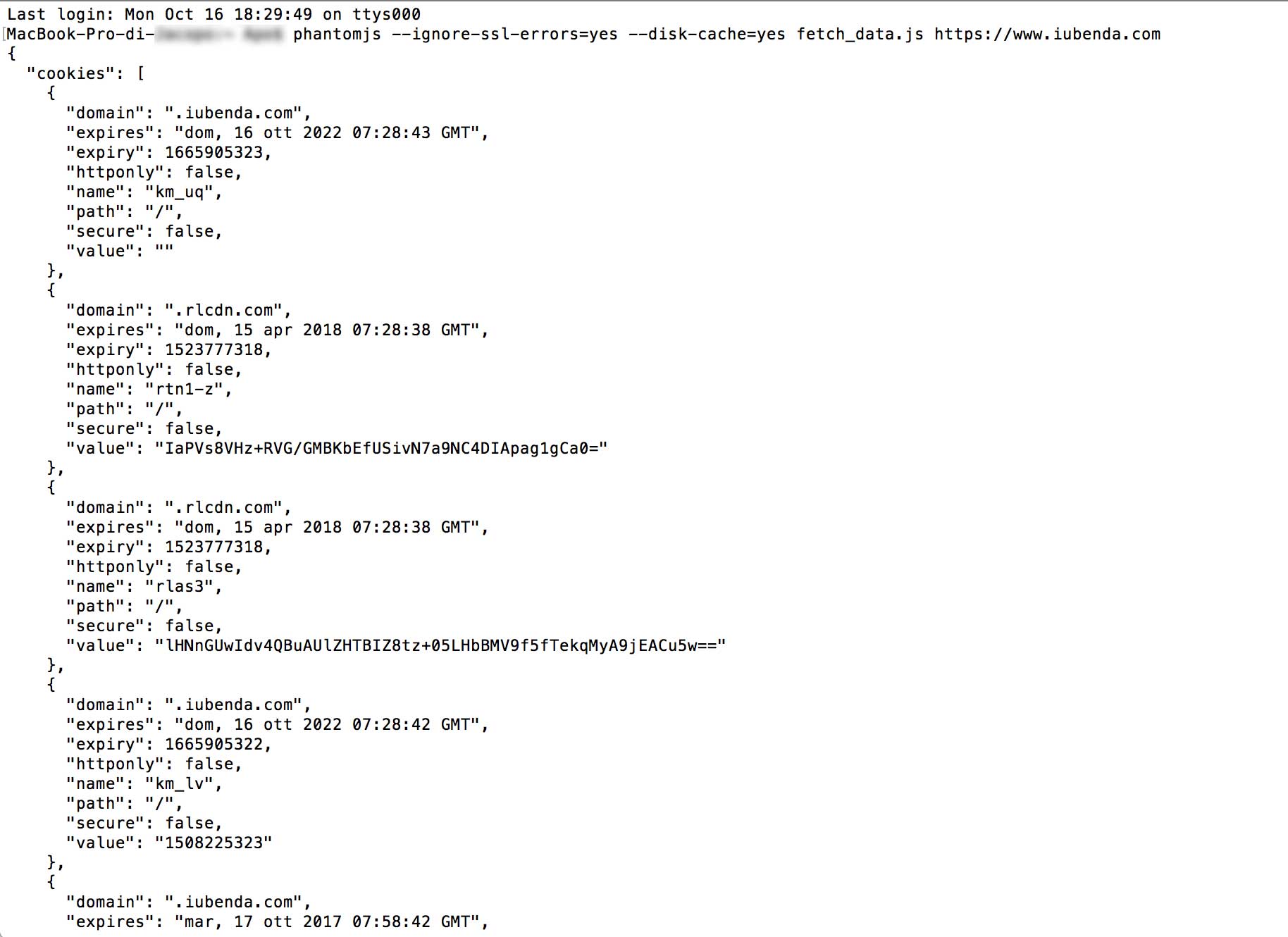
Zodra deze opdracht is uitgevoerd, geeft de terminal een lijst van de materialen en cookies die door de betreffende website worden gebruikt.
If your site is running cookies, here’s what you need to do:
- ✅ Generate your cookie banner
- ✅ Copy and paste to add it to your website