

Met iubenda is het genereren en opstellen van je algemene voorwaarden gemakkelijk, en we helpen je bij elke stap. In dit artikel laten we je zien hoe je je algemene voorwaarden vanaf het begin tot het eind kunt opstellen. Als je extra hulp nodig hebt, kun je ons een bericht sturen via het chatvenster (klik op de groene helpknop rechts en vervolgens op de live chatknop bovenaan). We staan altijd voor je klaar om al je vragen te beantwoorden.
First up, you’ll need to access your iubenda account. If you haven’t created one already, you can do so here. Once you’re signed up it’s time to get started. The process is simple. We’ll show you how to:
- Generate your terms and conditions
- Customize your terms and conditions
- Add the terms to your site or app
1. Je algemene voorwaarden genereren
Once you’ve logged into your dashboard, it’s time to begin generating your Terms and Conditions.
Als je de voorwaarden toevoegt aan een websitegebied of project dat al in je dashboard bestaat, klik je op die website of app om naar het beheergebied te gaan.
Als je nog geen website aan je iubenda-account hebt toegevoegd, kun je dat doen door op de knop Aan de slag rechtsboven in het dashboard te klikken om de opstelmodus te openen. Vul de relevante gegevens in en klik vervolgens op Aan de slag onderaan het venster. Hiermee kom je ook in het beheergebied.
Daar scrol je omlaag. Klik in het onderdeel Algemene voorwaarden op Nu genereren.

This will take you to the edit area of the Generator where you can add and customize clauses.
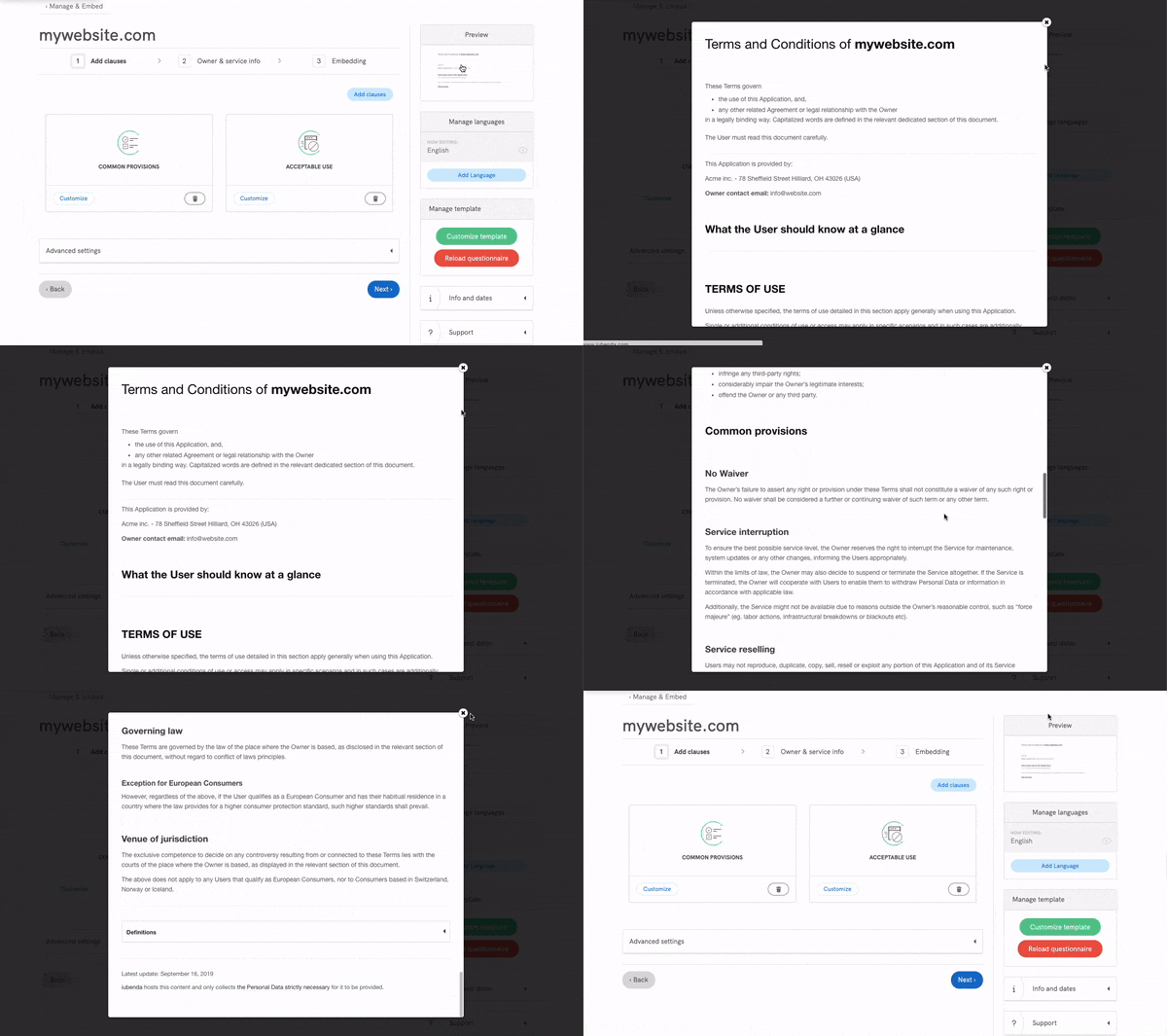
Now, by default, a basic set-up was created when you clicked on “Generate” (you can view this by clicking on Preview in the right sidebar). However, it’s important to point out that, since Terms and Conditions are legally binding documents, it’s in your best interest and we strongly recommended that you customize your documents to suit your particular situation and business needs. We’ll show you how to do that in the next step.
2. Je algemene voorwaarden aanpassen
As mentioned above, your Terms of Use need to to be adapted to your business’ individual needs. You do this by editing and adding clauses.
Klik daarvoor eerst op de knop Bepalingen toevoegen
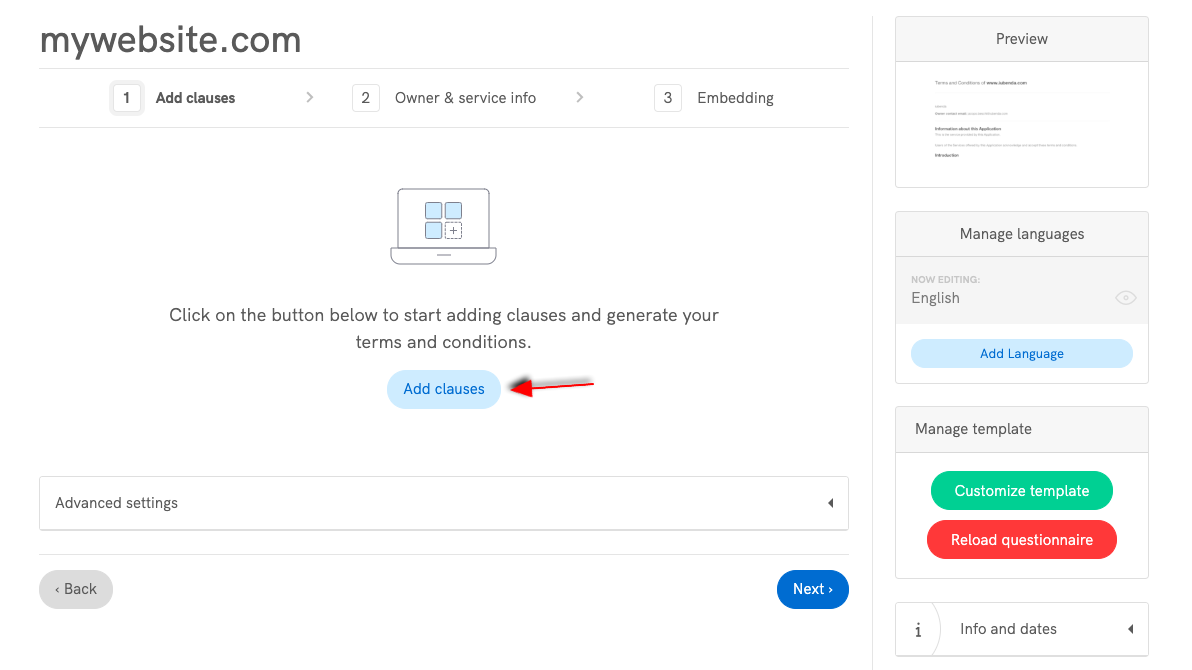
This will open up a window which allows you to select and edit the clauses you’d like to add. If it’s your first time using the Terms and Conditions Generator, you see the following:
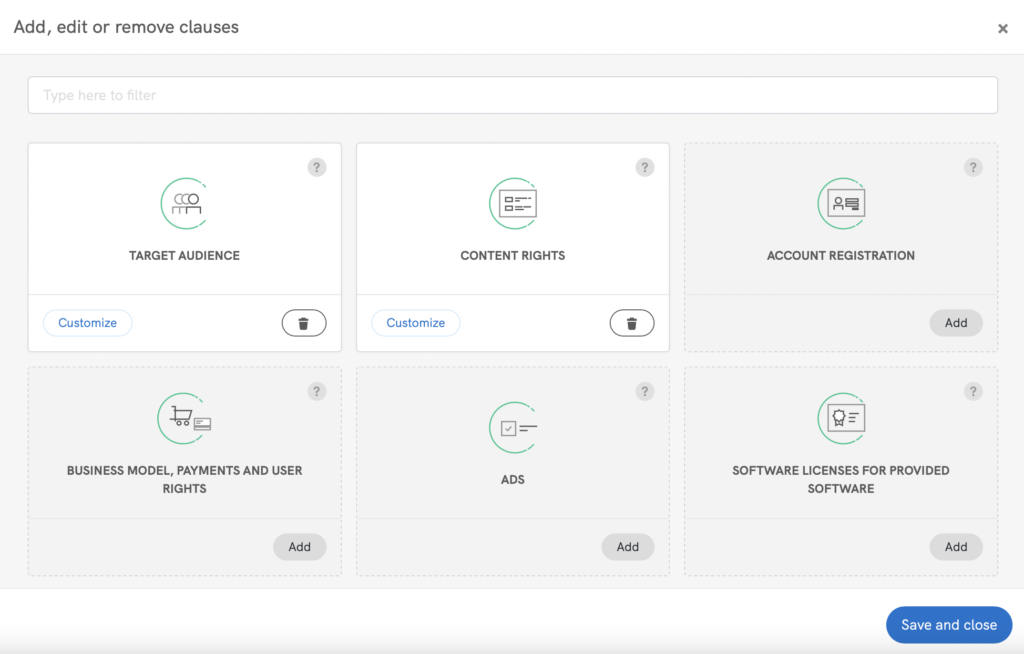
Zoals je in de afbeelding hierboven ziet, zijn de meest gebruikte bepalingen standaard voorgeselecteerd als onderdeel van een basisconfiguratie, maar je kunt die selectie ongedaan maken of indien nodig extra bepalingen toevoegen. De bepalingen zijn onderverdeeld in intuïtieve modules, met informatie waarop je kunt klikken voor meer ondersteuning bij het installatieproces.
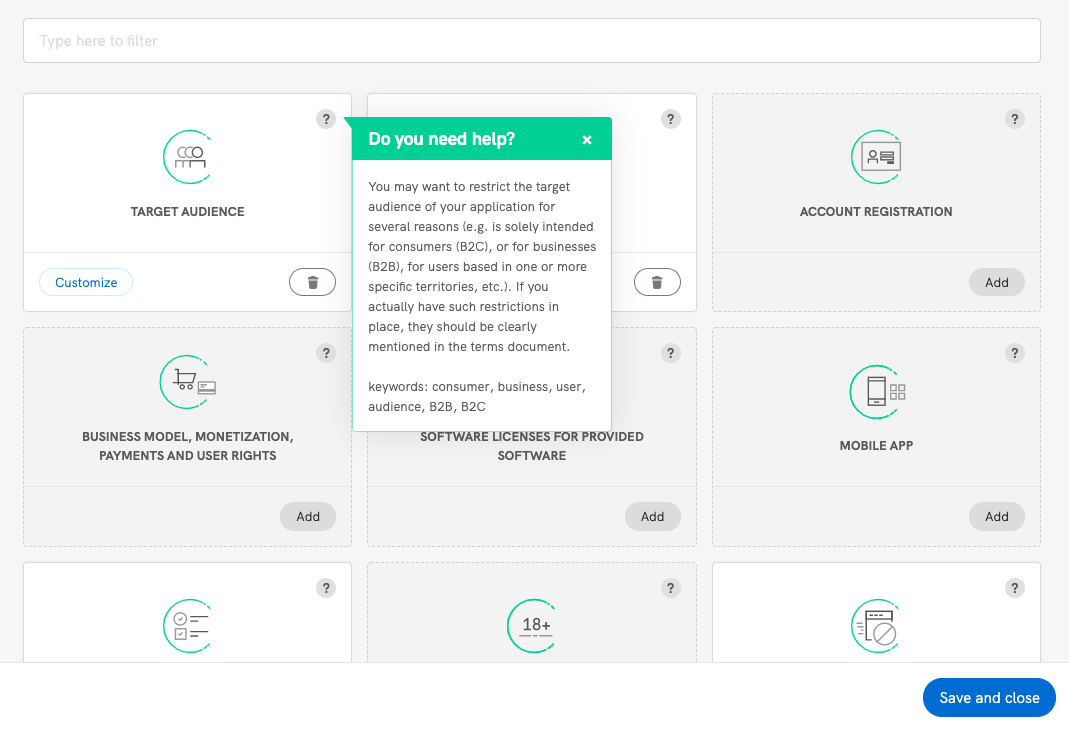
Klik op de knop Aanpassen om een bepaling te bewerken. Dit brengt je naar de tekst van de bepaling waar je deze indien nodig aan je specifieke situatie kunt aanpassen.
Zoals hierboven vermeld, is overal informatie beschikbaar om ervoor te zorgen dat je de opties kiest die het beste bij jouw behoeften passen.
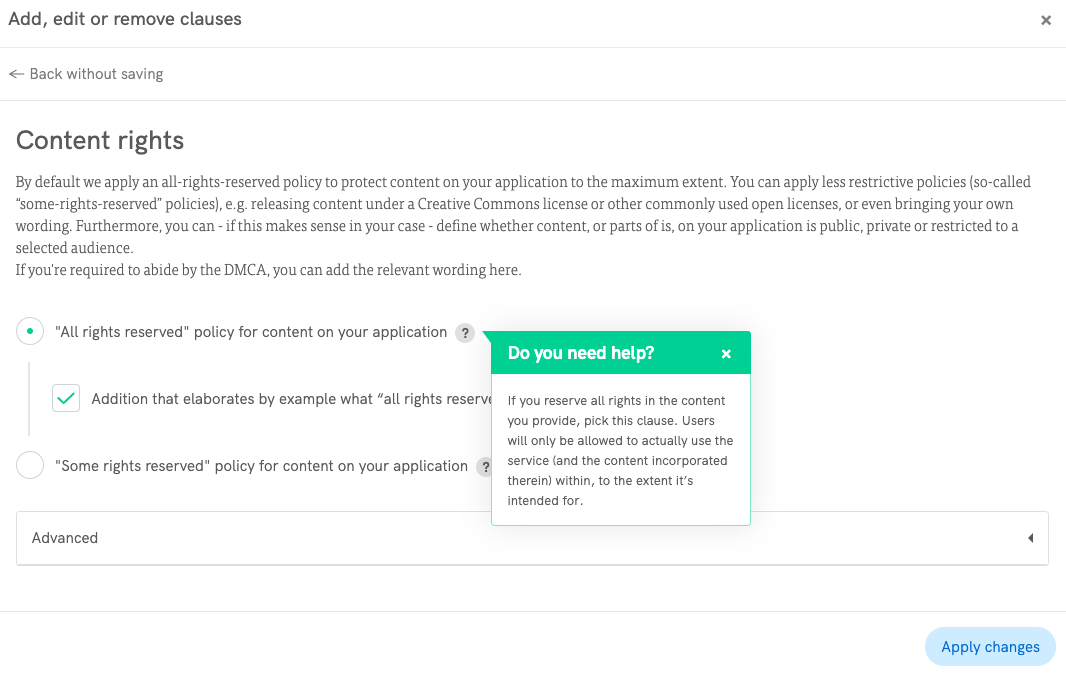
Click on the Apply changes button on the bottom right to save your customizations. This action will take you back to the main “clauses modal” window. If you’re finished customizing your terms, you can click on Save and close on the bottom right of this window and move on to the next step below.
Eigenaar- en diensteninformatie
Nu je klaar bent met bewerken, moet je nog je bedrijfsgegevens invullen in het veld Eigenaar. Klik hiervoor op de knop Volgende rechtsonder in het scherm.
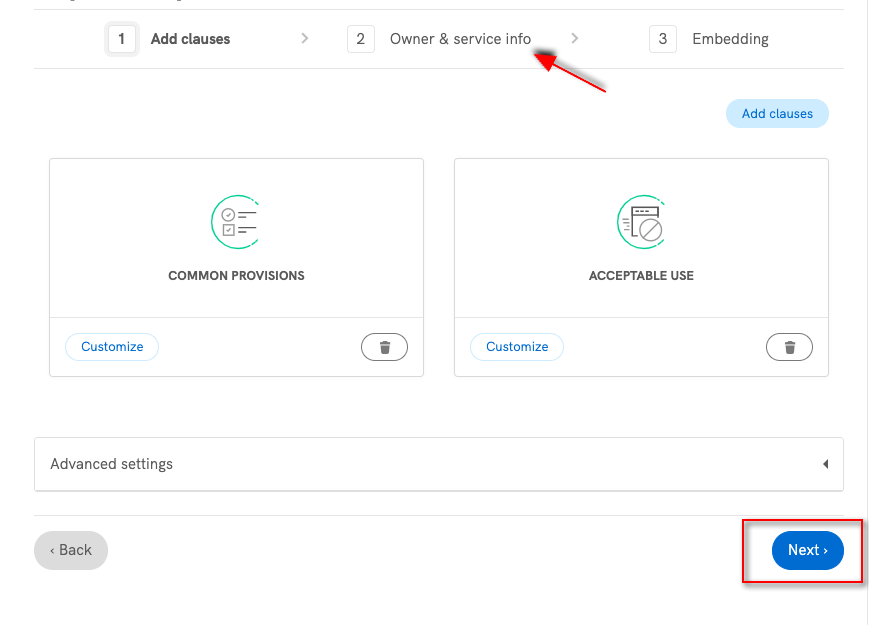
Dit brengt je naar de pagina voor de eigenaar- en diensteninformatie.
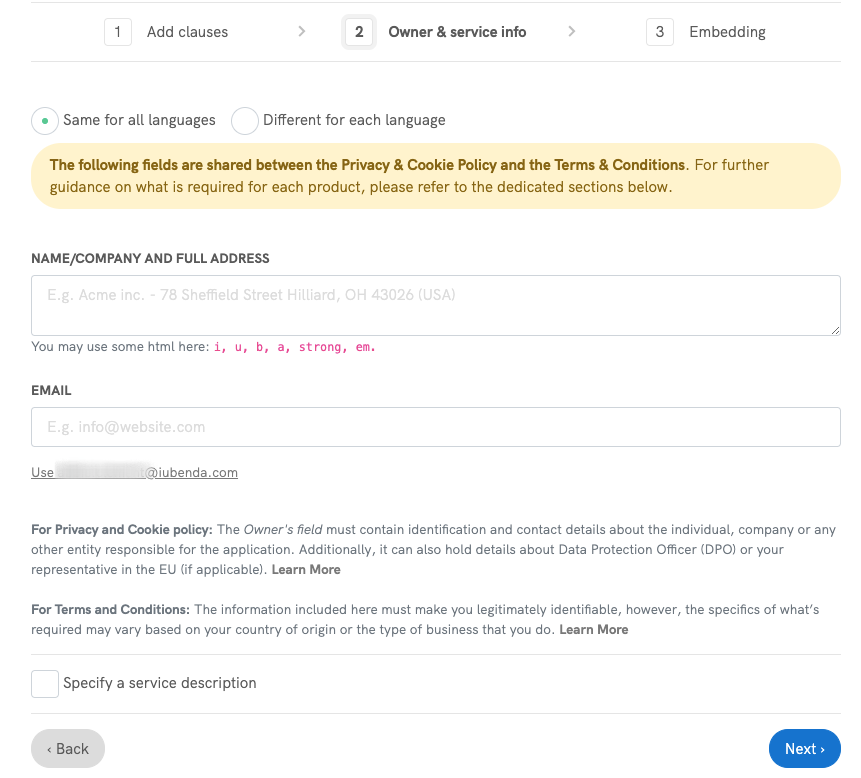
Here you’ll need to enter your legally valid business and/or contact info.
The details of what’s required for your specific scenario might vary based on where your business is located and who it targets. The most commonly required information here usually includes the owner’s/business’ identity, contact details, postal address, and relevant codes of conduct that apply to your business model (if any).
Since Terms of Service are legally binding contracts, it’s important to state legitimate details here. Also, do consider that, in many cases, under Consumer Law, customers must be able to contact you if the need arises.
More details on what’s required can be found in the dedicated guide.
Na het invullen van de vereiste informatie in het veld Eigenaar, klik je op de knop Volgende rechtsonder op de pagina. Dan wordt het voltooide document met algemene voorwaarden weergegeven. Als je daarna klikt op de knop Volgende rechtsonder in dit venster, ga je naar het onderdeel integratie van je websitegebied. Je kunt ook naar het onderdeel integratie gaan tijdens het genereren door te klikken op de link Beheren en insluiten linksboven in de Generator.
3. Je voorwaarden aan je website of app toevoegen
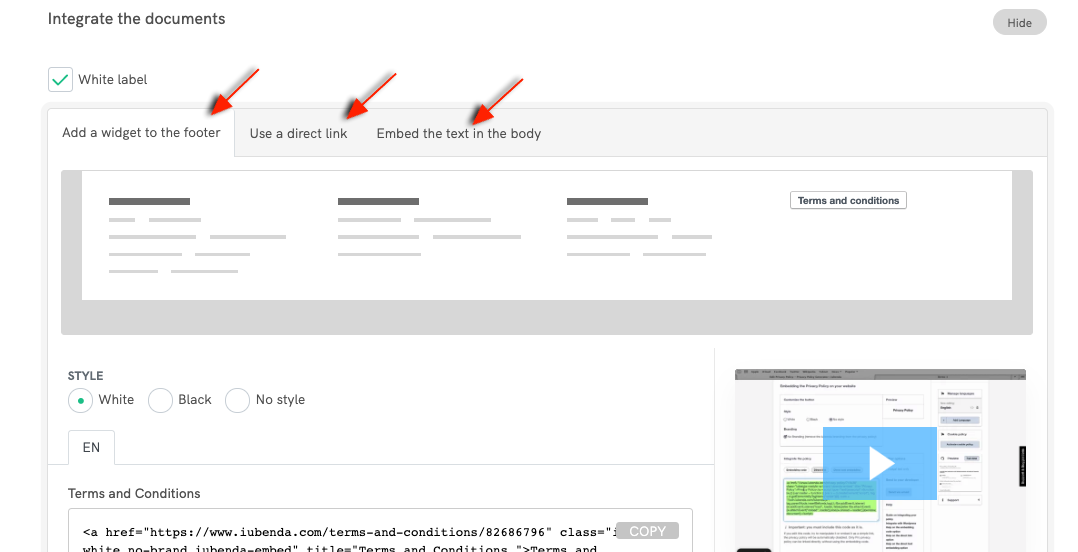
De laatste stap is het integreren van de algemene voorwaarden die je zojuist hebt gegenereerd in je website of app. Dit doe je met de insluitcode of de link die je vindt bij je insluitopties.
Je kunt de voorwaarden op de volgende manieren toevoegen aan je website of app:
- as a button which opens an elegant modal window;
- as a direct link (e.g. for App Stores);
- or as a direct site embed (best option if you’d like to add your own brand colors, custom fonts etc. to the document).
You can read more about how to add your terms and conditions to your site/app in the dedicated guide.
To access any of these methods, simply click on the relevant tab (if you already have a privacy policy active on that site, you’ll need to scroll to the Terms and Conditions section), copy the code snippet or text link depending on your chosen method, and follow the instructions in the guide linked above.
Dat is alles!
Werk je algemene voorwaarden bij en verfijn ze wanneer dat nodig is
We constantly monitor the major legislations to keep the clauses available to your documents valid and up-to-date, however, should you need to manually update clauses, personal details, contact details etc., you can simply log back into your iubenda dashboard and make changes at any time.