

Built your website on PrestaShop and need to manage cookies? In this guide, you’ll learn when you need a cookie policy or consent management platform (CMP) for PrestaShop and how to add iubenda’s Privacy Controls and Cookie Solution to your PrestaShop store using the official iubenda plugin.
Jump directly to How to add iubenda’s Privacy Controls and Cookie Solution to your PrestaShop site.
Do I need a cookie policy for PrestaShop?
Yes, and here’s why.
If you have EU-based users and your store uses cookies (which it most likely does), you need to manage cookie consents according to the ePrivacy Directive and GDPR. This means you need to block cookie scripts and similar technologies until the user gives consent.
Also, for the consent to be considered valid, you need to make certain disclosures via a cookie banner and link to a more detailed cookie policy. See our getting started guide.
Need to add a privacy policy to your PrestaShop store? See the PrestaShop privacy policy integration guide.
The integration on PrestaShop works through the official iubenda plugin. Once installed and configured, the plugin automatically injects the iubenda code into the <head> tag of every page, manages banner display and consent storage, and detects and blocks a wide list of third-party scripts server-side.
Caution
- The module is compatible with PrestaShop 1.7 and later. For PrestaShop 1.6, see the manual embedding section below.
- You also need to have overrides enabled (enabled by default).
What the solution supports
When you embed the Privacy Controls and Cookie Solution on your PrestaShop site, you get access to the full feature set of the iubenda cookie management platform:
- Fully customizable cookie banner with options to match your store’s branding and colors
- Automatic cookie policy generation based on the services detected on your site
- Auto-blocking of scripts that install cookies before consent is collected
- Integration with Google Consent Mode v2 (iubenda is a Google-certified CMP)
- Integration with IAB’s Transparency and Consent Framework (TCF 2.2)
- Support for US state privacy laws (CCPA/CPRA, VCDPA, CPA, CTDPA, and others)
- Support for the Swiss Federal Act on Data Protection (FADP)
- Support for Brazil’s LGPD
- Granular, per-category consent (e.g. Functionality, Experience, Marketing)
- Geo-detection to limit consent requests to regions where legally required
- Storage of consent proofs for accountability
- Simplified management for multilingual PrestaShop stores
- AdRoll
- AddThis widgets
- Bing
- CodePen
- Criteo
- Disqus
- Elevio
- Facebook Comments
- Facebook widgets
- Freshchat
- Google AdSense
- Google Analytics
- Google Maps
- Google ReCaptcha
- Google Site Search
- Google Tag Manager
- Google oAuth
- Google+ widgets
- Headway
- Instagram widgets
- Kissmetrics
- LinkedIn widgets
- Mixpanel
- Neodata
- Olark
- Optimizely
- Outbrain
- PayPal widgets
- Pingdom
- Pinterest widgets
- Segment
- ShareThis widgets
- Twitter widgets
- UserVoice
- Vimeo
- YouTube
1. Generate a cookie policy
Before adding the cookie banner, generate a cookie policy for your PrestaShop store. Head over to your iubenda dashboard and click on [Your website] > Privacy and Cookie Policy > Edit. Add each service your site uses (e.g. Google Analytics, embedded videos, social buttons, payment providers) so that your cookie policy accurately reflects your data processing activities.
Once your cookie policy is ready, the Privacy Controls and Cookie Solution will automatically link to it from your cookie banner.
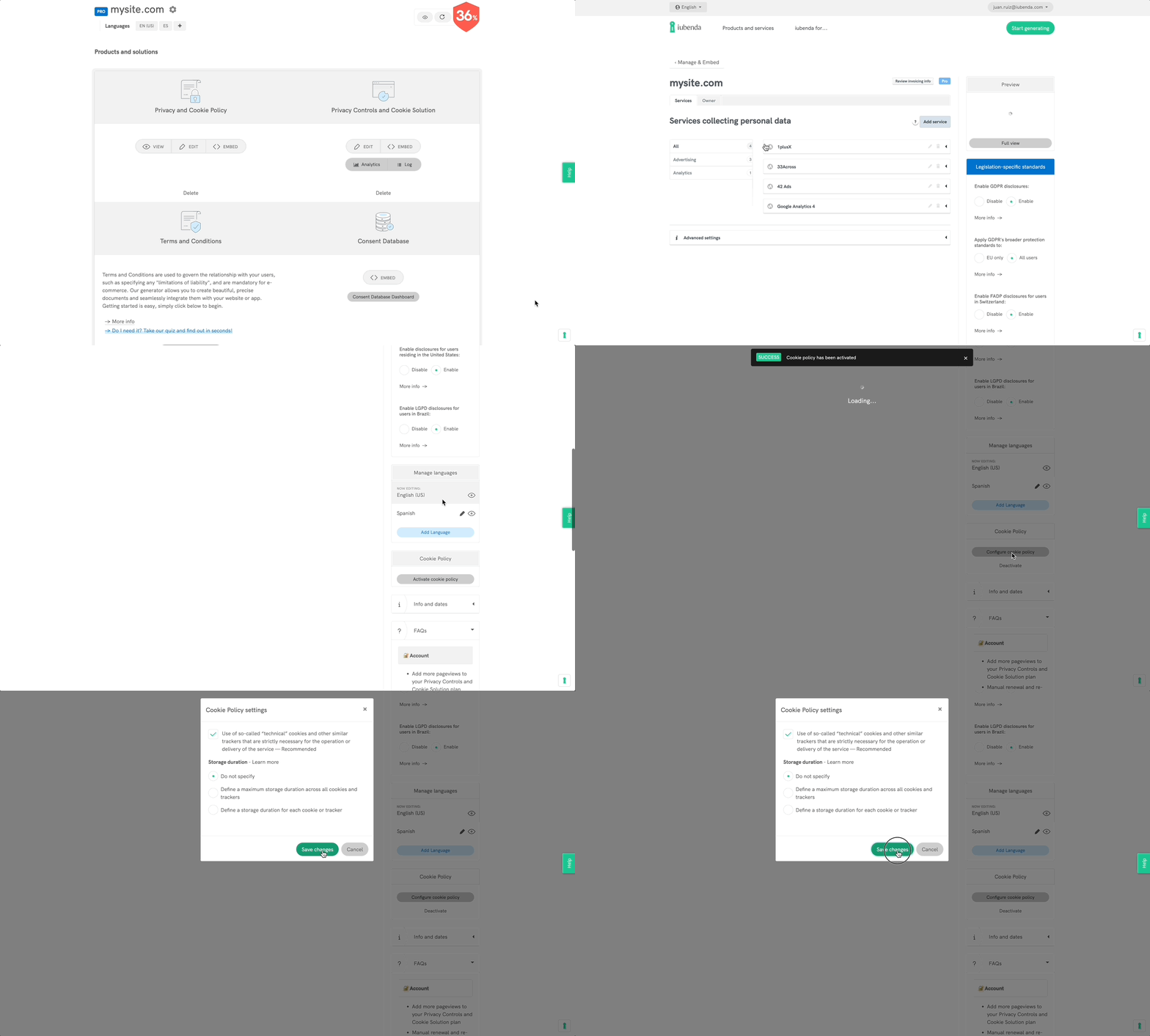
If you already host your cookie policy at a custom URL, you can link to it manually in the Privacy Controls and Cookie Solution settings under Embed > Cookie Policy URL.
2. Add the cookie banner
Not sure what privacy documents you need for your PrestaShop store? Take this quick quiz to see which laws apply to you and your business.
Once you’ve generated and customized your Privacy Controls and Cookie Solution, follow the steps below to integrate it with your PrestaShop store using the official iubenda plugin.
Step 1: Install and activate the iubenda plugin
- Log in and open the admin section to get to your main PrestaShop dashboard.
- Click on Modules > Modules & Services in the sidebar menu.
- Click on Upload a module in the header section.
- To install the module, upload the zip file (click here to download). You must point to the module’s zip archive, and not its folder or any of its unpacked files.
If the installation is successful, you’ll get this message:
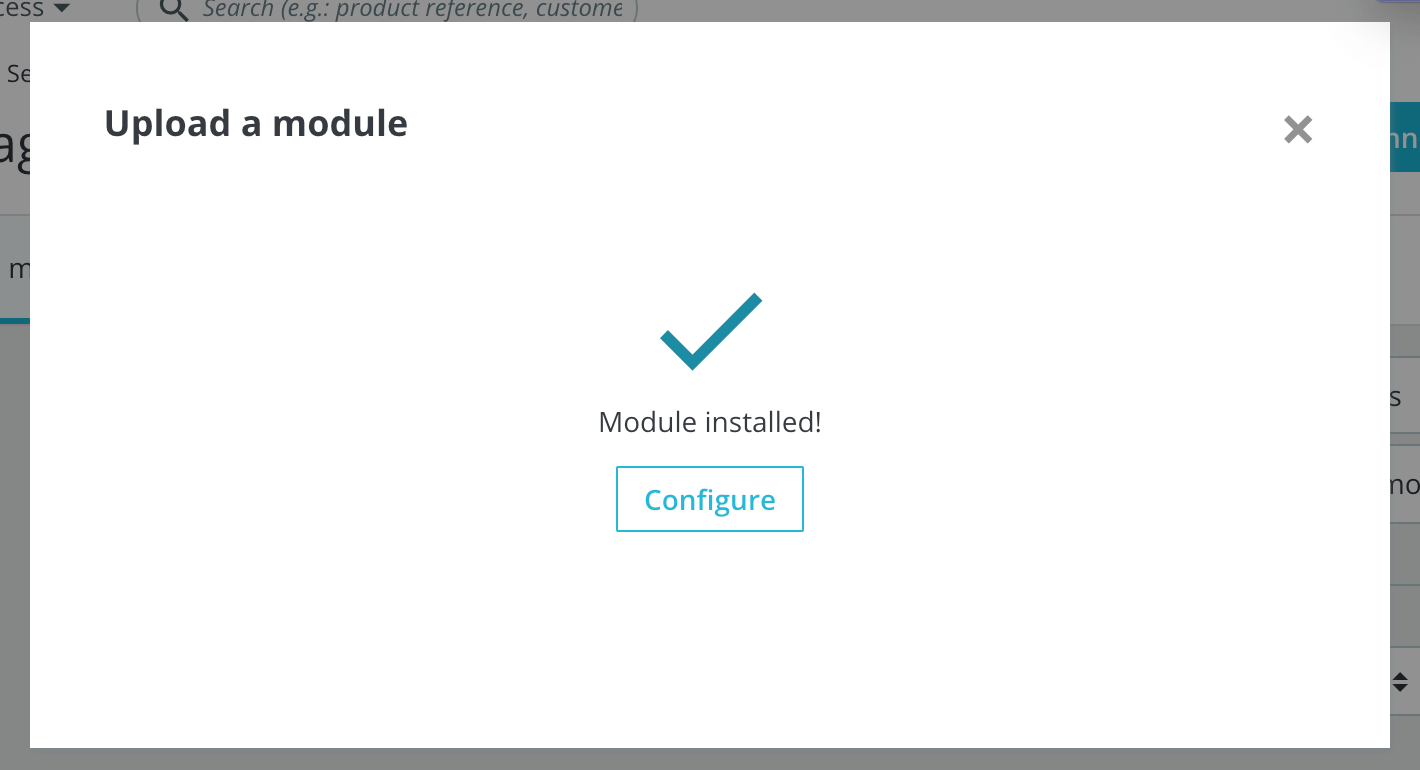
The module will then appear in your list of modules under Modules & Services. Now it’s time to configure the module.
Step 2: Copy the embed code from iubenda
Go to your iubenda dashboard and click on [Your website] > Privacy Controls and Cookie Solution > Embed. Copy the embed code snippet from the embedding section.
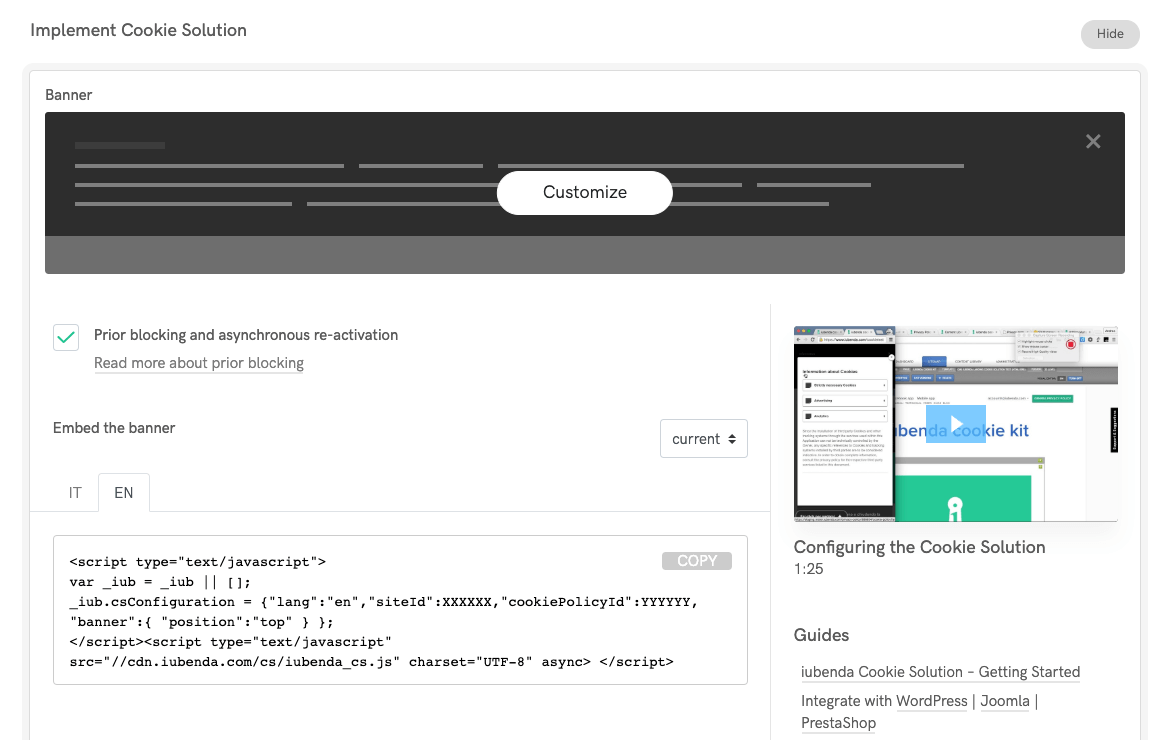
If you haven’t already generated your cookie banner and code, you can do so here, or for in-depth information, read the Privacy Controls and Cookie Solution getting started guide.
Step 3: Configure the plugin
- If you didn’t click Configure inside the “Module installed!” pop-up, navigate to the Modules & Services page and find the iubenda module.
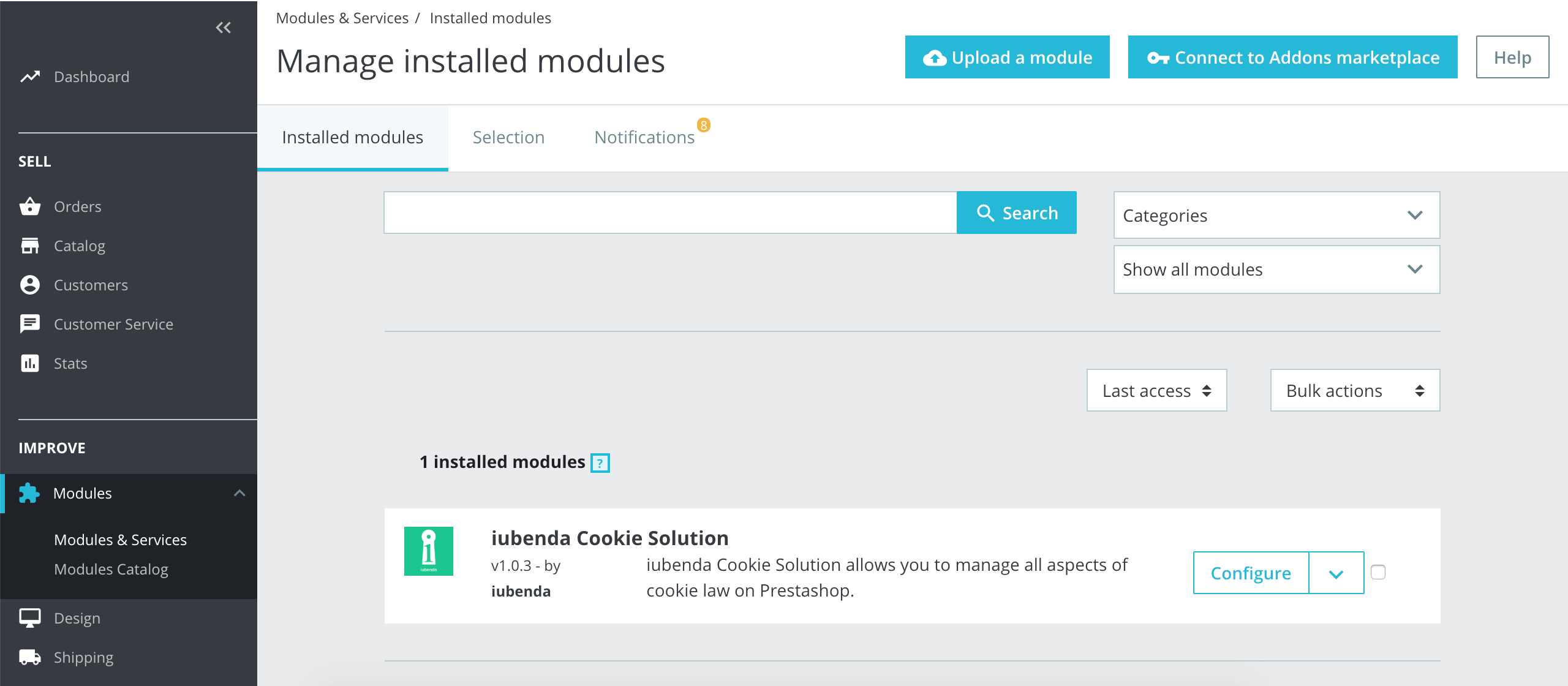
- Click Configure to open the module configuration settings.
- Paste the iubenda embed code (copied in Step 2) into the plugin form and click Save.
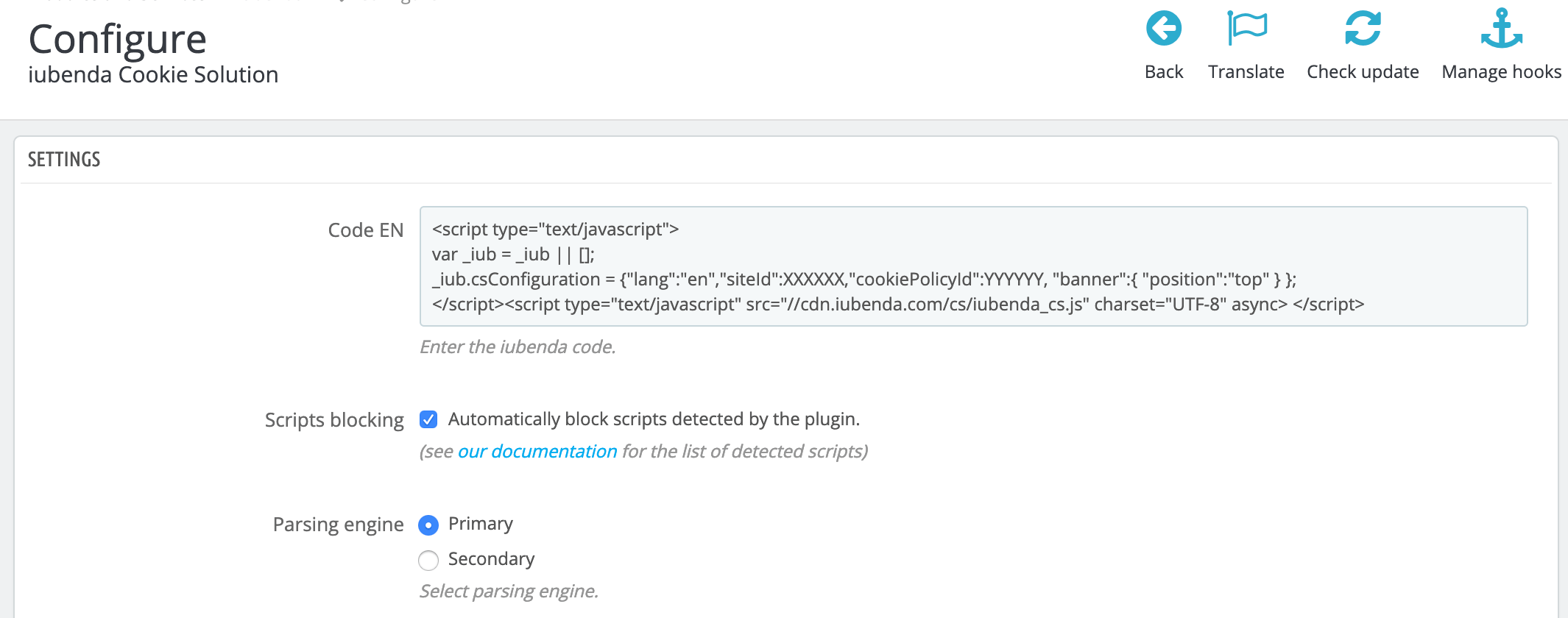
Being PHP native, we recommend the primary, faster option for the parsing engine. If you’re experiencing issues, try the alternative based on a custom HTML DOM class.
Once configured, the plugin will start to show the banner on which your cookie policy is linked, to users that visit your site for the first time, without the need for any other configuration. The plugin also recognizes and blocks the cookies from the third-party services listed above, when they’re present on your site.
3. Set up prior blocking of cookie scripts
Few categories of cookies are exempt from the consent requirement. Therefore, almost all scripts that install or can install cookies must be blocked before consent is obtained.
Simplify your cookie-blocking process with auto-blocking
There’s a simpler option available for the prior blocking of cookies and trackers. Our auto-blocking feature automates the process, saving you time and effort. The PrestaShop plugin also detects and blocks a wide list of common third-party scripts server-side, so many services are covered out of the box.
If you prefer to manually tag your scripts that install or may install cookies, you can still follow the process below for step-by-step instructions and practical examples. However, we highly recommend considering the auto-blocking feature for a more streamlined approach.
Learn more about auto-blocking and how it can simplify your cookie-blocking process.
Important
The PrestaShop plugin automatically blocks scripts that are generated server-side (returned by PHP by PrestaShop). Scripts inserted into the page via JavaScript after the page has loaded are not blocked automatically. You can block those scripts by entering the source into the Custom Scripts or Custom iframes fields in the plugin console (see below), or by using the manual tagging method described in the walkthrough that follows.
Block custom scripts from within the plugin console
The Custom Scripts and Custom iframes fields make it easy to block scripts inserted into the page directly from within the plugin console, without editing your site’s code.
- On the left menu in your admin panel, go to the Improve section and click Extensions > Plugins.
- Search “iubenda”, and when the plugin appears, click Configure.
- Scroll down to find the Custom Scripts and Custom iframes fields at the bottom of the page.
- Enter your script or iframe sources as needed, and click Save at the bottom-right of the page.
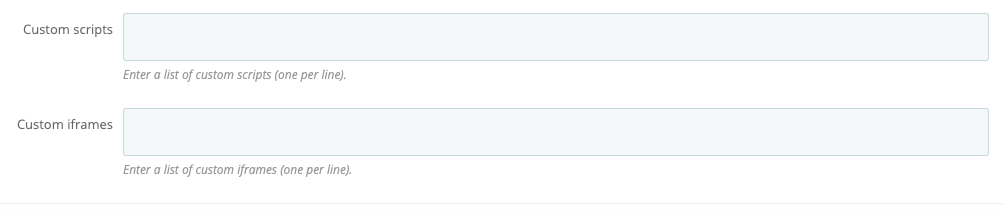
Examples: what to paste into these fields
Script. To block a social button (which inserts scripts into the page via JavaScript), enter the script source, e.g. connect.socialwebsite.net/en_US/track.js, into the Custom Scripts field.
iframe. Say you want to block scripts inserted into the page via the following iframe:
<iframe width="1280" height="720" src="https://www.videowebsite.com/embed/xxFhMChxx" frameborder="0" allow="accelerometer; autoplay; encrypted-media; gyroscope; picture-in-picture" allowfullscreen></iframe>What you’d enter into the Custom iframes field is videowebsite.com/embed/ because this is the actual source of the scripts. Do not include the component id (videowebsite.com/embed/xxFhMChxx) so that all scripts coming from the actual source are blocked.
How to implement prior blocking via manual tagging on your PrestaShop site
Manual tagging is the method of prior blocking we’ll use for the tutorial below. This is the right approach for scripts inserted into the page via JavaScript after the page has loaded (which the plugin can’t block automatically). You can view other methods here.
To set up prior blocking, you need to make some minor changes to your site’s scripts. Here’s what to do:
- Identify the script/iframe for any additional services running on your site (e.g., a Twitter follow button in a PrestaShop template or CMS block)
- Add some simple text to the HTML code (we’ll show you how below)
- Save
In this tutorial, we are going to block a Twitter follow button.
Not sure which services you need to block? If you’re using a cookie policy generated by iubenda, the services listed in your cookie policy are most likely the ones you need to modify now.
Step 1: Identify the script
In your PrestaShop back office, open the template file, CMS page, or module that contains the script you need to modify (search for the service you want to block, in this case, the Twitter follow button). Template files (.tpl) can be edited via the Design > Theme & Logo section or directly on your server; CMS page content can be edited from Design > Pages.
Open the code editor for the file or block you want to change.
Step 2: Modify your script
Now, we’re going to change the script. To do this, we’ll make 3 simple changes:
- Add this class:
_iub_cs_activateto the script tags, and change the “type” attribute fromtext/javascripttotext/plain - Replace the src with
data-suppressedsrcorsuppressedsrc - Specify the categories of the scripts/iframes with a special comma-separated
data-iub-purposesattribute, e.g.data-iub-purposes="2"ordata-iub-purposes="2, 3"
More about categories and purposes
Purposes are your legal reasons for processing the particular type of user data. Different scripts on your site will fall into different categories and serve different purposes. For example, Google Analytics may be used for Measurement, while the Pinterest button may be used for Experience (Purpose 3 below). Purposes are grouped into 5 categories, each with an id (1, 2, 3, 4, and 5):
- Necessary (id:
1) - Functionality (id:
2) - Experience (id:
3) - Measurement (id:
4) - Marketing (id:
5)
For even more detailed info on categories and purposes, see our guide here.
Let’s take the Twitter follow button as an example:
We need to 1. Add the class and change the “type” attribute, 2. replace the src and 3. specify the categories.
The code structure should look like this:
<p>Twitter follow button:</p>

        <!-- please note type="text/plain" class="_iub_cs_activate" data-suppressedsrc="..." (manual tagging) and data-iub-purposes="3" (per-category consent) -->
<a href="https://twitter.com/iubenda" class="twitter-follow-button" data-show-count="false">Follow @iubenda</a>
  <script async type="text/plain" class="_iub_cs_activate" data-suppressedsrc="https://platform.twitter.com/widgets.js" data-iub-purposes="3" charset="utf-8"></script>
Alternative: the wrapping method
You can also block scripts by wrapping them in iubenda comment markers directly in your PrestaShop templates. This works for both scripts and HTML/IMG/IFRAME elements:
<!--IUB-COOKIE-BLOCK-START-->
<script>
    (function(d, s, id) {
        var js, fjs = d.getElementsByTagName(s)[0];
        if (d.getElementById(id)) return;
        js = d.createElement(s);
        js.id = id;
        js.src = "//connect.socialwebsite.net/en_US/sdk.js#xfbml=1&version=v2.3&appId=808061959224601";
        fjs.parentNode.insertBefore(js, fjs);
    }(document, 'script', 'socialwebsite-jssdk'));
</script>
<!--IUB-COOKIE-BLOCK-END-->
For HTML, IMG, or IFRAME elements:
<!--IUB-COOKIE-BLOCK-START-->
      <iframe src="...
      <img src="...
<!--IUB-COOKIE-BLOCK-END-->
To assign a purpose to a wrapped block (per-category consent), use the purpose-specific markers. For a script that belongs to Experience (id 3):
<!--IUB-COOKIE-BLOCK-START-PURPOSE-3-->
<script>
    ...
</script>
<!--IUB-COOKIE-BLOCK-END-PURPOSE-3-->
To stop the plugin from automatically parsing or replacing scripts or iframes with a defined src:
<!--IUB-COOKIE-BLOCK-SKIP-START-->
      <script type="text/javascript">...</script>
<!--IUB-COOKIE-BLOCK-SKIP-END-->
Step 3: Save
Now that you’ve made your changes, save the template file, CMS page, or module in PrestaShop, and clear the shop cache from Advanced Parameters > Performance so your changes take effect on the front end.
Not sure if you’ve set up correctly? Check out the live example and FAQs below.
Live example
This is an example that shows everything we have described above. You can use this CodePen as a guide to see what happens before and after blocking scripts via manual tagging.
To demonstrate the cookie blocking feature, we’ve embedded a YouTube video and a Twitter follow button:
Follow @iubenda
Both scripts are blocked through manual tagging. Since both the YouTube video widget and the Twitter follow button are part of the Experience purpose (id 3), we’ve added data-iub-purposes="3" to their scripts so that the Privacy Controls and Cookie Solution can properly identify them for release.
Click on the Accept button, or activate the “Experience” toggle, to release these scripts (refresh the page to return to the starting point).
How can I tell if I’ve set prior blocking up properly?
As you can see in the CodePen example, the YouTube and Twitter scripts do not load if you do not consent. (You can test this again by opening this link in incognito mode in your browser.)
After you’ve saved your changes and cleared the PrestaShop cache, open your store in incognito mode and check that the scripts you’ve blocked via manual tagging stay blocked until you consent.
For other blocking options, see Google Consent Mode as an alternative to prior blocking, Google Tag Manager to simplify the blocking of cookies, or the IAB Transparency & Consent Framework and how to enable it.
Good to know: PrestaShop-specific considerations
Keep these points in mind when using the Privacy Controls and Cookie Solution on PrestaShop:
- Overrides must be enabled. The iubenda module relies on PrestaShop’s override system, which is enabled by default. If overrides are disabled on your store, re-enable them from Advanced Parameters > Performance before installing.
- Server-side vs. client-side scripts. The plugin blocks scripts returned by PHP (server-side) automatically. Scripts injected via JavaScript after the page loads need to be handled through the Custom Scripts / Custom iframes fields or through manual tagging.
- API calls and XML-RPC. For API calls and XML-RPC endpoints, we suggest appending the parameter
?iub_no_parse=1so the plugin skips parsing on those requests. - Parsing engine. The plugin is PHP-native. We recommend the primary (faster) parsing engine. If you run into issues, switch to the alternative engine based on the custom HTML DOM class from the module settings.
- Clear the cache after changes. After saving edits to templates, CMS pages, or module settings, clear the shop cache from Advanced Parameters > Performance so your changes are visible on the front end.
Troubleshooting: PrestaShop “Forbidden” error
Caution
Always remember to back up your website before attempting any fix.
In some rare cases, the system may return a “Forbidden” error when you enter the Privacy Controls and Cookie Solution script (or any other script) into the iubenda module and click Save.

This is likely related to a ModSecurity property of Apache activated in the PrestaShop backend. To fix it, disable the mod_security module:
Click on Shop Parameters > Traffic & SEO, find the “Disable Apache ModSecurity Module” option and set it to “Yes”.
If the procedure doesn’t work, you may need to contact your web hosting provider about your specific site restrictions.
Privacy Controls and Cookie Solution on PrestaShop 1.6.x
If you can’t upgrade to PrestaShop 1.7 or later (which is compatible with the iubenda module), you’ll need to integrate the code manually. You have two options:
- Integrate the code into the
<head>tag of your site as the first element (see Manual embedding below). - Use a third-party module that adds the Privacy Controls and Cookie Solution script to the
<head>tag as the first element (see Embedding via a PrestaShop module below).
Manual embedding
In this case, you’ll most likely need to edit the header.tpl file of your PrestaShop theme and add the Privacy Controls and Cookie Solution script.
We don’t have a dedicated guide for this, but you can find helpful articles online, such as this one on how to modify a PrestaShop template.
The Privacy Controls and Cookie Solution code should be placed between {literal} tags as shown below:
{literal}Cookie Solution Script{/literal}
Embedding via a PrestaShop module
If you don’t want to touch the code, you can use a simple PrestaShop module that adds the Privacy Controls and Cookie Solution script to the <head> tag of the page, such as this HTML Box module.
Changelog and current version
1.3.1
Enhanced script insertion to follow _iub.csConfiguration based on autoblocking status
Removed async from the autoblocking script
1.3.0
Introduced iubenda automatic blocking feature
1.2.0
Support the PrestaShop latest version 8
Update the core iubenda classes to the latest version
1.1.18
Fix SSRF security vulnerability
Remove googletagmanager.com/gtm.js from basic interaction
1.1.17
Integrate with PageCache Ultimate
1.1.16
Fix: avoid overriding the purposes attribute if it was set
1.1.15
Fix: purpose evaluation for iframes blocking
Fix: block the custom scripts while parsing
1.1.14
Fix: follow code standard to avoid conflict on overriding
Fix: add per-purpose on inline script tags
Tweak: add GA to per-purpose blocking support
1.1.13
Fix: move FB connect to experience enhancement
1.1.12
Tweak: add Google GPT to per-purpose blocking support
Fix: admin.js ready method deprecation
1.1.11
Fix: limit url sanitize to http protocols
Fix: AddThis per-purpose category
1.1.10
New: per-purpose script blocking support
New: “Reject” button support
1.0.9
Tweak: Simple HTML Dom PHP class update to 1.9
Tweak: code handled with official code validator
1.0.8
New: introducing a way to skip specific script parsing
Fix: improved handling of iubenda script HTML
Tweak: support links update
1.0.7
Tweak: adjust the iubenda PHP class handling
Tweak: update iubenda logo
1.0.6
New: option to block custom scripts and iframes
Tweak: update and extend the list of blocked scripts including Google Site Search, Google oAuth, LinkedIn widgets, PayPal widgets, Freshchat, UserVoice, AdRoll, Olark, Segment, Kissmetrics, Mixpanel, Pingdom, Bing and Elevio
1.0.5
Tweak: update and extend the list of blocked scripts including Pinterest, AddThis, Disqus, Optimizely, Neodata, Criteo, Outbrain, Headway and CodePen
Tweak: interface improvements
1.0.4
Fix: invalid iubenda parser implementation
1.0.3
Tweak: update and unify iubenda parsing engine
1.0.2
Fix: edge output empty if script blocking disabled
1.0.1
Tweak: iubenda faster class regex update
1.0
Initial release
See also
- How to use iubenda privacy and cookie policy on a PrestaShop website
- Privacy Controls and Cookie Solution: getting started
- How to customize the look and behavior of the cookie banner
- Introduction to the prior blocking of cookie scripts
- Auto-blocking guide
- Cookie Solution: advanced configuration
- Google Consent Mode: set up GTM with iubenda
- US state privacy laws and the Privacy Controls and Cookie Solution